JavaScript – outputs
- Writing into an HTML element, using
innerHTML. - Writing into the HTML output using
document.write(). - Writing into an alert box, using
window.alert(). - Writing into the browser console, using
console.log().
1. .innerHTML:
.innerHTMLis a property in JavaScript that allows you to change the content of an HTML element.- You can use it to update the text or HTML markup within an element. Example:
Let’s say you have an HTML<div>element with the id “myElement”:
<div id="myElement">This is some initial content.</div>Code language: HTML, XML (xml)In JavaScript, you can change the content of this element like this:
   let element = document.getElementById("myElement");
   element.innerHTML = "This is the new content.";Code language: JavaScript (javascript)
Output :
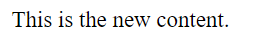
After running this JavaScript code, the content of the <div> element will be replaced with “This is the new content.”
2. document.write():
document.write()is a JavaScript method that can be used to write content directly to the HTML document.- It’s often used for testing or in scenarios where you want to add content to the page as it loads. Example:
You can usedocument.write()like this:
document.write("This content will be added to the document.");Code language: JavaScript (javascript)Output :

When the page loads, the text “This content will be added to the document.” will be written directly to the page where the JavaScript code is placed.
3. window.alert():
window.alert()is a JavaScript function that displays a pop-up dialog box with a message to the user.- It’s commonly used to show important messages or notifications to the user. Example:
You can usewindow.alert()like this:
window.alert("Hello, this is an alert!");Code language: JavaScript (javascript)Output :
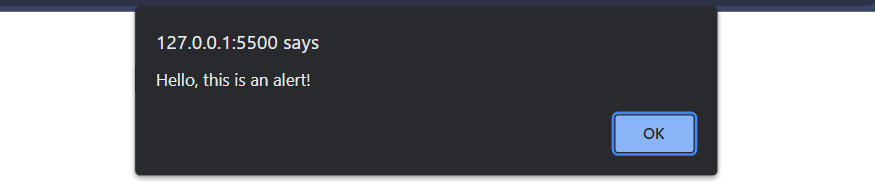
When this JavaScript code is executed, a pop-up alert with the message “Hello, this is an alert!” will appear on the user’s screen, and they need to click “OK” to dismiss it.
4. console.log():
console.log()is a JavaScript function used for debugging and logging information to the browser’s developer console.- It’s helpful for developers to see what’s happening in their code without affecting the user interface. Example:
You can useconsole.log()like this:
   let message = "This is a log message.";
   console.log(message);Code language: JavaScript (javascript)
Output :

When you open the browser’s developer console (usually by pressing F12 or right-clicking and selecting “Inspect”), you’ll see the message “This is a log message.” logged in the console. It’s a useful way to check the values of variables or track the flow of your code.
5. windows.print() :
In JavaScript, window.print() is a method that allows you to trigger the printing of the current web page when a user clicks on a button or interacts with your web application. It’s a handy feature for providing a print-friendly version of your content. Here’s an explanation along with an example:
Explanation:
window.print()is a function that, when called, opens the browser’s print dialog box.- The print dialog allows the user to choose a printer and configure printing options.
- After the user makes their selections and clicks “Print,” the browser sends the content of the web page to the chosen printer.
Example:
Suppose you have a web page with a button, and you want to allow users to print the content of that page when they click the button. You can use window.print() for this purpose.
Here’s the HTML and JavaScript code for such a scenario:
<!DOCTYPE html>
<html>
<head>
    <title>Print Page Example</title>
</head>
<body>
    <h1>Welcome to My Web Page</h1>
    <p>This is some content that you can print.</p>

    <button onclick="printPage()">Print this Page</button>

    <script>
        function printPage() {
            // Call window.print() to open the print dialog
            window.print();
        }
    </script>
</body>
</html>Code language: HTML, XML (xml)
Output :
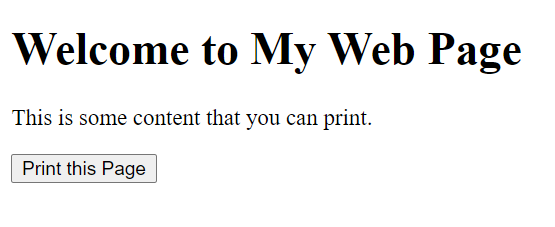
In this example:
- We have an HTML button with the text “Print this Page.”
- When the button is clicked, the
printPage()function is called, which contains thewindow.print()command. - Clicking the button will open the browser’s print dialog, allowing the user to select a printer and print the content of the web page.
Using window.print() in this way makes it easy for users to generate a printed version of your web page, making it more accessible for offline reading or documentation purposes.
These JavaScript features are essential for manipulating content on web pages, providing feedback to users, and debugging your code during development.
