JavaScript – Multimedia
Multimedia elements, such as images, audio, and video, have become integral to modern web development, enabling us to create rich, interactive, and engaging web experiences. JavaScript plays a pivotal role in controlling and enhancing multimedia on web pages. In this comprehensive guide, we’ll explore the world of JavaScript multimedia, covering everything from embedding media to interactive multimedia applications.
Embedding Images with JavaScript
1. Dynamically Loading Images
<body>
<div id="image-container"></div>
</body>
<script>
const imageContainer = document.getElementById('image-container');
const imageURL = 'image.jpg';
const image = new Image();
image.src = imageURL;
image.onload = () => {
imageContainer.appendChild(image);
};
</script>Code language: JavaScript (javascript)Output :

Audio and Video with JavaScript
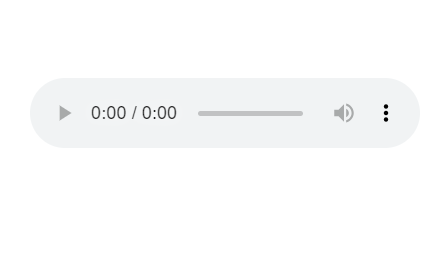
2. Embedding Audio
 <div id="audio-container"></div>
  <script>
    const audioContainer = document.getElementById('audio-container');
    const audioURL = 'audio.mp3';

    const audio = new Audio(audioURL);
    audio.controls = true;

    audioContainer.appendChild(audio);
  </script>Code language: JavaScript (javascript)
Output :
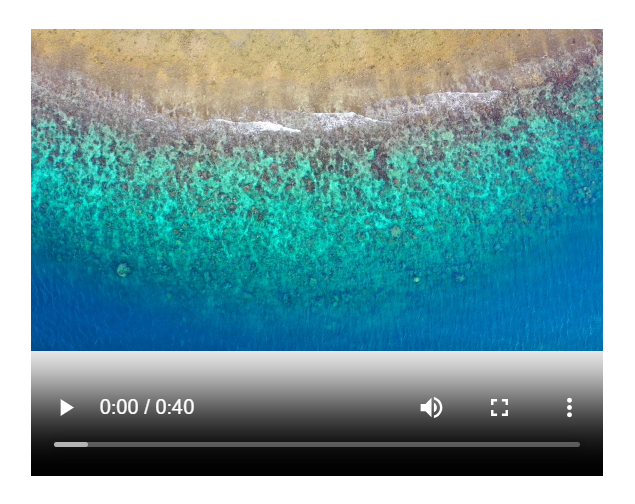
3. Embedding Video
<div id="video-container"></div>
  <script>
    const videoContainer = document.getElementById('video-container');
    const videoURL = 'video (2160p).mp4';

    const video = document.createElement('video');
    video.src = videoURL;
    video.controls = true;

    videoContainer.appendChild(video);
  </script>Code language: JavaScript (javascript)
Output :
Building Interactive Multimedia Applications
4. Creating a Video Player with JavaScript
<!DOCTYPE html>
<html lang="en">
<head>
    <meta charset="UTF-8">
    <meta name="viewport" content="width=device-width, initial-scale=1.0">
    <title>Simple Video Player</title>
</head>
<body>
    <h1>Simple Video Player</h1>

    <video id="videoPlayer" width="640" height="360" controls>
        <source src="video (2160p).mp4" type="video/mp4">
        Your browser does not support the video tag.
    </video>

    <script>
        const videoPlayer = document.getElementById('videoPlayer');

        videoPlayer.addEventListener('play', () => {
            console.log('Video is playing');
        });

        videoPlayer.addEventListener('pause', () => {
            console.log('Video is paused');
        });

        videoPlayer.addEventListener('ended', () => {
            console.log('Video has ended');
        });
    </script>
</body>
</html>Code language: JavaScript (javascript)
Output :
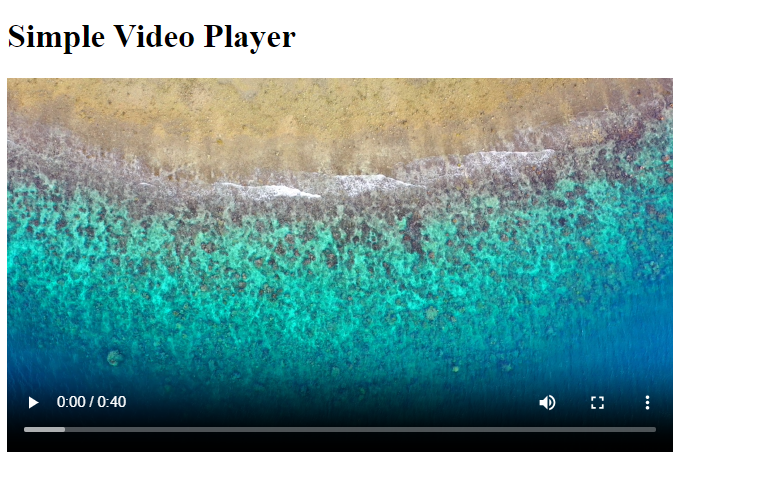
In this example, we have a basic HTML structure with a <video> element. The controls attribute is added to the <video> element, which provides standard video player controls like play, pause, and volume.
We also include a <source> element within the <video> element to specify the video file source (in this case, “sample-video.mp4”). If the browser doesn’t support the video tag or the specified video format, it will display the “Your browser does not support the video tag.” message.
The JavaScript code at the bottom of the HTML file adds event listeners to the video player. It logs messages to the console when the video starts playing, pauses, or ends.
You can replace “sample-video.mp4” with the path to your own video file. This is a basic example, and you can customize and enhance it further to meet your specific needs for a video player on your website.
Conclusion
JavaScript empowers web developers to create immersive multimedia experiences that captivate and engage users. Whether you’re embedding images, audio, or video, or building interactive multimedia applications, JavaScript is your key to unlocking the full potential of multimedia on the web.
By mastering these techniques and continuously exploring new possibilities, you can take your web development skills to the next level and create memorable multimedia-rich websites and applications. So, dive into the world of JavaScript multimedia and start building your next multimedia masterpiece today!
Related posts:

Powered by YARPP.