JavaScript-Form properties and methods
Introduction:
Forms are a fundamental part of web development, allowing users to input data and interact with websites. JavaScript, being a versatile scripting language, provides developers with a plethora of tools to manipulate and control forms. In this comprehensive guide, we will delve into the world of form properties and methods in JavaScript, exploring how they can be leveraged to create dynamic, interactive, and user-friendly web forms.
Understanding Form Properties:
Forms in HTML are represented as objects in JavaScript. These form objects have various properties that provide information about the form itself and its elements. Let’s take a closer look at some essential form properties:
1. form.elements: This property returns a collection of all form elements (input fields, buttons, etc.) within the form. You can access and manipulate individual elements using their names or indices.
const myForm = document.getElementById('myForm');
const formElements = myForm.elements;
const usernameInput = formElements['username'];Code language: JavaScript (javascript)2. form.length: This property returns the number of form elements within the form. It’s useful for iterating through all the form elements dynamically.
const numElements = myForm.length;Code language: JavaScript (javascript)3. form.name: You can use this property to get or set the name attribute of the form. It’s helpful when working with multiple forms on a page.
const formName = myForm.name;Code language: JavaScript (javascript)4. form.action and form.method: These properties allow you to access or modify the form’s action (the URL to which the form data is sent) and method (GET or POST) attributes.
const formAction = myForm.action;
const formMethod = myForm.method;Code language: JavaScript (javascript)
Example :
<!DOCTYPE html>
<html>
<head>
    <title>Form Properties Example</title>
    <script>
        document.addEventListener("DOMContentLoaded", function () {
            const myForm = document.getElementById("myForm");

            // Accessing form properties
            const formLength = myForm.length;
            const formName = myForm.name;
            const formMethod = myForm.method;
            const formAction = myForm.action;

            // Displaying form properties
            document.getElementById("formProperties").innerHTML = `
                Form Length: ${formLength}<br>
                Form Name: ${formName}<br>
                Form Method: ${formMethod}<br>
                Form Action: ${formAction}<br>
            `;
        });
    </script>
</head>
<body>
    <h1>Form Properties Example</h1>
    <form id="myForm" name="registrationForm" action="process_form.php" method="POST">
        <label for="name">Name:</label>
        <input type="text" id="name" name="name"><br><br>

        <label for="email">Email:</label>
        <input type="email" id="email" name="email"><br><br>

        <input type="submit" value="Submit">
    </form>
    <div id="formProperties"></div>
</body>
</html>
Code language: JavaScript (javascript)
Output :
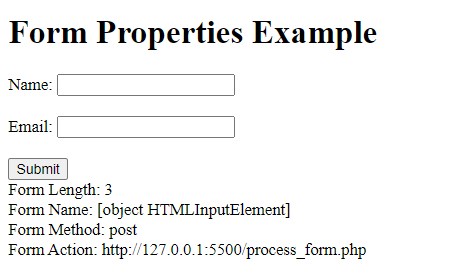
In this example:
- We have an HTML form with an
idof “myForm” and various form elements. - We use JavaScript to access and display form properties when the page loads.
The JavaScript code accesses these properties and displays them in a div element with the id “formProperties.” When you load the page and submit the form, you’ll see the values of these form properties displayed below the form.
These properties are useful for obtaining information about a form and can be used in various ways, such as for validation or customization of form behavior based on the form’s attributes.
Form Methods for Interaction:
JavaScript provides several methods that allow you to interact with forms dynamically. These methods enable you to perform actions like submitting forms, resetting them, and focusing on specific elements:
1. form.submit(): This method programmatically submits the form, triggering the submission process as if the user had clicked a submit button.
myForm.submit();Code language: JavaScript (javascript)2. form.reset(): Use this method to reset all form elements to their initial values, clearing user inputs.
myForm.reset();Code language: JavaScript (javascript)3. form.focus() and form.blur(): These methods allow you to set or remove focus from the form. You can use them to control which form or input field has focus.
myForm.focus();Code language: JavaScript (javascript)4. form.checkValidity(): This method checks the form’s validation constraints and returns a Boolean indicating whether the form is valid. It’s especially useful when working with HTML5 form validation.
   if (myForm.checkValidity()) {
     // Form is valid; proceed with submission
   } else {
     // Handle validation errors
   }Code language: JavaScript (javascript)
Interactivity with Form Elements:
In addition to form-level properties and methods, JavaScript provides tools to manipulate individual form elements:
1. element.value: This property gets or sets the current value of form elements like text inputs, textareas, and select elements.
const inputValue = usernameInput.value;
usernameInput.value = 'new_value';Code language: JavaScript (javascript)
2. element.disabled: Use this property to disable or enable form elements. Disabled elements cannot be interacted with.
usernameInput.disabled = true; // Disable the inputCode language: JavaScript (javascript)3. element.focus() and element.blur(): These methods allow you to programmatically set or remove focus from form elements, similar to the form-level methods.
usernameInput.focus();Code language: JavaScript (javascript)4. element.addEventListener(): Attach event listeners to form elements to respond to user interactions. For example, you can validate user input when they type in a text field.
usernameInput.addEventListener('input', (event) => {
  // Validate input or perform other actions
});Code language: JavaScript (javascript)
Handling Form Submission:
One of the most common interactions with forms is submitting data to a server. JavaScript provides ways to control this process:
1. Preventing Default Submission: You can use the event.preventDefault() method in an event listener to prevent the default form submission behavior. This is useful when you want to perform client-side validation or handle form submission asynchronously.
myForm.addEventListener('submit', (event) => {
   event.preventDefault();
   // Perform client-side validation or submit data asynchronously
});Code language: JavaScript (javascript)
2. Programmatic Submission: As mentioned earlier, you can use the form.submit() method to programmatically submit the form. This is handy when you want to submit the form after some user interaction or data manipulation.
myForm.submit();Code language: JavaScript (javascript)3. Form Serialization: To gather form data for submission, you can manually collect input values or use the FormData API to serialize the form data as key-value pairs.
const formData = new FormData(myForm);
// Send formData to the server using AJAX or FetchCode language: JavaScript (javascript)
Exmaple :
<!DOCTYPE html>
<html>
<head>
    <title>Form Methods Example</title>
    <script>
        document.addEventListener("DOMContentLoaded", function () {
            const myForm = document.getElementById("myForm");

            // Event listener for form submission
            myForm.addEventListener("submit", function (event) {
                event.preventDefault(); // Prevent the default form submission

                // Display a message on form submission
                document.getElementById("formMessage").innerHTML = "Form Submitted!";
            });

            // Event listener for form reset
            document.getElementById("resetButton").addEventListener("click", function () {
                myForm.reset(); // Reset form fields
                document.getElementById("formMessage").innerHTML = ""; // Clear the message
            });

            // Event listener for focusing on an input field
            document.getElementById("focusButton").addEventListener("click", function () {
                document.getElementById("name").focus(); // Focus on the "Name" input field
            });
        });
    </script>
</head>
<body>
    <h1>Form Methods Example</h1>
    <form id="myForm" name="exampleForm" action="process_form.php" method="POST">
        <label for="name">Name:</label>
        <input type="text" id="name" name="name"><br><br>

        <label for="email">Email:</label>
        <input type="email" id="email" name="email"><br><br>

        <input type="submit" value="Submit">
    </form>
    <p id="formMessage"></p>
    <button id="resetButton">Reset Form</button>
    <button id="focusButton">Focus on Name Field</button>
</body>
</html>Code language: JavaScript (javascript)
Output :
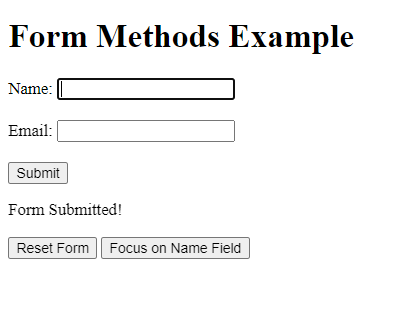
In this example:
- We have an HTML form with two input fields (name and email) and two buttons.
- JavaScript is used to add event listeners to the form and buttons.
This example illustrates how you can use JavaScript to interact with form elements and control their behavior using form methods and event listeners.
Dynamic Forms with JavaScript:
JavaScript allows you to create dynamic forms that adapt to user input or changing conditions. Here are some examples:
1. Conditional Fields: Show or hide form fields based on user choices. For instance, you can display additional address fields only when a user selects a specific shipping option.
const shippingSelect = document.getElementById('shipping_method');
const addressFields = document.getElementById('address_fields');

shippingSelect.addEventListener('change', () => {
    if (shippingSelect.value === 'express') {
    addressFields.style.display = 'block';
    } else {
    addressFields.style.display = 'none';
    }
});Code language: JavaScript (javascript)
2. Autocomplete Suggestions: Implement autocomplete suggestions in search or address fields to help users find relevant information quickly.
const searchInput = document.getElementById('search');

searchInput.addEventListener('input', async () => {
    const userInput = searchInput.value;
    // Fetch and display autocomplete suggestions based on userInput
});Code language: JavaScript (javascript)
Accessibility and Forms:
Accessibility is crucial in web development to ensure that all users, including those with disabilities, can interact with your forms. JavaScript can aid in creating accessible forms:
1. ARIA Roles: Use ARIA (Accessible Rich Internet Applications) roles and attributes to enhance the accessibility of form elements. For example, you can use aria-label to provide custom labels for input fields.
usernameInput.setAttribute('aria-label', 'Username');Code language: JavaScript (javascript)2. Keyboard Navigation: Ensure that users can navigate and interact with forms using only the keyboard. Test your forms using keyboard shortcuts and tab navigation.
// Ensure that all form elements are keyboard accessibleCode language: JavaScript (javascript)Conclusion:
Forms are essential components of web development, and JavaScript provides a wide array of properties and methods to interact with them dynamically. Understanding these tools allows developers to create user-friendly, interactive, and accessible web forms.
By leveraging form properties, methods, and JavaScript’s interactivity, you can build web applications that collect and process user data efficiently while ensuring a positive user experience. Whether you’re validating input, creating dynamic forms, or enhancing accessibility, JavaScript is a powerful ally in simplifying and enriching your web forms.
Related posts:

Powered by YARPP.