JavaScript and Cookies
What are Cookies ?
Cookies are small pieces of data that websites store on a user’s computer or device while the user is browsing the web. These data files are created by web servers and are sent to the user’s web browser, where they are stored.
- Session Management: Cookies are often used to manage user sessions on websites. They can store information such as session IDs, allowing websites to recognize and authenticate users as they navigate between pages. This is essential for maintaining login status and keeping users logged in during their visit.
- Personalization: Cookies enable websites to remember user preferences and settings. For example, a website can store a user’s language preference, layout choice, or font size, providing a personalized browsing experience.
- Tracking and Analytics: Cookies are used for tracking user behavior on websites. Web analytics tools often rely on cookies to collect data on how users interact with a site. This information can be used to improve website performance, content, and user experience.
- Shopping Carts: In e-commerce websites, cookies are used to store information about the items in a user’s shopping cart. This ensures that items remain in the cart even if the user navigates to other pages or leaves the site and returns later.
- Ad Targeting: Cookies are employed in online advertising to track user interests and behavior. Advertisers use this information to display relevant ads to users based on their browsing history.
- Security: Some cookies have security-related functions, such as preventing cross-site request forgery (CSRF) attacks or protecting against other forms of online threats.
Cookies are categorized into two main types:
- Session Cookies: These cookies are temporary and exist only for the duration of a user’s session on a website. They are often used for session management and are deleted when the user closes their browser.
- Persistent Cookies: Persistent cookies have a longer lifespan and are stored on the user’s device even after the browser is closed. They are used for purposes like remembering login information or user preferences across multiple sessions.
It’s important to note that while cookies have many legitimate uses, they can also raise privacy concerns. Tracking cookies, in particular, have been a topic of debate regarding user privacy. To address these concerns, many websites provide options for users to control or opt out of cookie tracking, and privacy regulations, such as the General Data Protection Regulation (GDPR) in Europe, require websites to inform users about cookie usage and obtain their consent.
How It Works ?
Imagine you’re visiting your favorite online store. When you land on the website, the server of that website wants to remember certain things about you to provide a better experience. These things might include your shopping cart contents, your login status, or your language preference. This is where cookies come into play.
- Request and Response: When you open your web browser and type in the website’s address, your browser sends a request to the website’s server. In response, the server not only sends back the webpage you requested but also includes some small data files known as cookies.
- Storage: Your web browser receives these cookies and stores them on your computer or device. Think of them as little notes that the website leaves for your browser to remember.
- Subsequent Requests: Now, as you continue to navigate the website, your browser automatically sends these cookies back to the website’s server with each request you make. It’s like carrying those notes with you and showing them to the website each time you interact with it.
- Website’s Memory: The website’s server reads these cookies and remembers the information they contain. For example, if you added items to your shopping cart, the server knows what’s in it because of the cookies. Or if you logged in during your previous visit, it recognizes you and keeps you logged in thanks to those cookies.
- Personalization: Cookies also help personalize your experience. They might remember your preferred language, so the website displays content in that language. Or they might remember your username, so you don’t have to log in every time.
- Analytics and Ads: Some cookies are used by the website for analytics. They collect data on how users interact with the site, helping the website owners improve it. Additionally, cookies are used in online advertising to show you ads that are more relevant to your interests based on your browsing history.
- Privacy and Control: It’s important to know that cookies can raise privacy concerns. Websites should inform you about their use of cookies and give you options to control or disable them. This helps you decide how much data you’re comfortable sharing.
In summary, cookies are like little notes that websites use to remember things about you and your preferences. They make your online experiences more convenient and personalized. However, it’s crucial for websites to handle cookies responsibly, respect your privacy, and give you the choice to manage them.
Storing Cookies :
Storing cookies is a critical part of web development. Cookies are small text files that websites place on a user’s device to store information, enabling personalized experiences and session management. Here’s how to store cookies manually:
- Server-Side Set-Up: Cookies are typically set on the server-side of a web application. In languages like PHP, Python, or Node.js, developers use functions to create cookies and define their attributes.
- Cookie Name and Value: Developers choose a name for the cookie and assign it a value. This value can be user-specific data, like a session ID or user preferences.
- Attributes: Developers can set attributes like the cookie’s expiration date, domain, and path. These attributes determine when and where the cookie is sent to the server.
- Response Header: The server sends the cookie to the user’s browser by including it in the response header. This header informs the browser to store the cookie.
- Client-Side Storage: Once received, the browser stores the cookie locally on the user’s device.
Storing cookies enables websites to remember user preferences, maintain login sessions, and track user behavior for analytics. It’s crucial for developers to manage cookies responsibly, respecting user privacy and complying with regulations like GDPR.
Here’s an example of how to store cookies using HTML and JavaScript. In this example, we’ll create a simple webpage that allows a user to set their preferred website theme (light or dark) as a cookie.
<!DOCTYPE html>
<html>
<head>
<title>Cookie Example</title>
</head>
<body>
<h1>Website Theme Preference</h1>
<p>Choose your preferred theme:</p>
<label for="lightTheme">Light Theme</label>
<input type="radio" id="lightTheme" name="theme" value="light">
<label for="darkTheme">Dark Theme</label>
<input type="radio" id="darkTheme" name="theme" value="dark">
<button onclick="setThemeCookie()">Save Theme Preference</button>
<script>
function setThemeCookie() {
// Get the selected theme value
var selectedTheme = document.querySelector('input[name="theme"]:checked').value;
// Create a new cookie with the theme preference
document.cookie = "theme=" + selectedTheme + "; expires=Fri, 31 Dec 9999 23:59:59 GMT";
// Inform the user that the preference has been saved
alert("Theme preference saved!");
}
</script>
</body>
</html>Code language: JavaScript (javascript)Output :
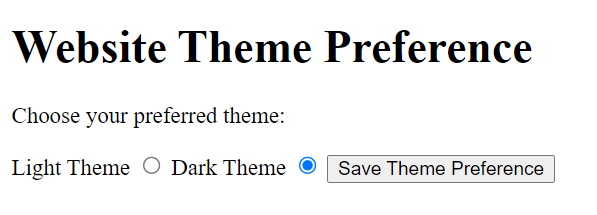
In this example:
- We have a simple HTML form with two radio buttons for selecting a theme (light or dark).
- When the user clicks the “Save Theme Preference” button, the
setThemeCookieJavaScript function is called. - Inside the
setThemeCookiefunction:
- We retrieve the selected theme value using JavaScript.
- We create a new cookie using the
document.cookieproperty, setting the name of the cookie (“theme”) and its value (the selected theme). - We also set an expiration date for the cookie (in this case, far in the future).
- Finally, we display an alert to let the user know that their theme preference has been saved.
Now, when the user selects a theme and clicks the button, a cookie is created to store their preference. The next time they visit the website, the site can read this cookie and apply their chosen theme.
Reading Cookies:
Reading cookies is a fundamental aspect of web browsing. When you visit a website, it often stores small text files known as cookies on your device. These cookies serve various purposes, such as remembering your login credentials, site preferences, and tracking your browsing behavior.
To access and read cookies manually, you can follow these steps:
- Open Browser Settings: In your web browser, typically, you can access cookie settings through the “Settings” or “Options” menu.
- Privacy or Security Section: Look for a section related to privacy or security settings. You may find options for managing cookies there.
- View Cookies: There should be an option to view or manage cookies. Click on it, and you’ll see a list of cookies stored by various websites.
- Cookie Details: Click on a specific cookie to see its details. You can usually find information like the website it’s from, its purpose, and expiration date.
Reading cookies allows you to understand how websites interact with your data, and you can choose to delete or block them if you have privacy concerns. It’s essential to periodically review your cookie settings to maintain your online privacy and security.
Here’s an example of how to read cookies using HTML and JavaScript. In this example, we’ll retrieve and display a user’s preferred website theme that was previously stored in a cookie:
<!DOCTYPE html>
<html>
<head>
  <title>Cookie Example</title>
</head>
<body>
  <h1>Website Theme</h1>
  <p>Your selected theme:</p>
  <div id="themeDisplay"></div>

  <script>
    // Function to retrieve the value of a specific cookie
    function getCookie(name) {
      var cookieValue = null;
      if (document.cookie && document.cookie !== '') {
        var cookies = document.cookie.split(';');
        for (var i = 0; i < cookies.length; i++) {
          var cookie = cookies[i].trim();
          // Check if this cookie has the desired name
          if (cookie.substring(0, name.length + 1) === (name + '=')) {
            // Extract and decode the cookie value
            cookieValue = decodeURIComponent(cookie.substring(name.length + 1));
            break;
          }
        }
      }
      return cookieValue;
    }

    // Check if the 'theme' cookie exists
    var themeCookie = getCookie('theme');

    // Display the theme preference if it exists
    if (themeCookie) {
      document.getElementById('themeDisplay').textContent = "Theme: " + themeCookie;
    } else {
      document.getElementById('themeDisplay').textContent = "Theme not set.";
    }
  </script>
</body>
</html>Code language: JavaScript (javascript)
Output :

In this example:
- We have an HTML page that includes a
<div>element with the id “themeDisplay” where we’ll display the user’s selected theme. - We use JavaScript to define a
getCookiefunction. This function accepts a cookie name as a parameter and returns the cookie’s value. It does so by splitting thedocument.cookiestring into individual cookies, searching for the desired cookie by name, and extracting its value. - We then call the
getCookiefunction to retrieve the value of the “theme” cookie (if it exists). - Depending on whether the “theme” cookie is found, we update the content of the “themeDisplay”
<div>to either display the selected theme or indicate that the theme is not set.
This code demonstrates how you can read the value of a specific cookie and use it to personalize the user’s experience on your website based on their previous preferences.
Setting Cookies Expiry Date:
Setting a cookie’s expiration date is a common practice in web development, and it’s often done using JavaScript. Here’s an example of how you can set a cookie with a specific expiration date:
Suppose you want to create a cookie named “userToken” that expires in 30 days. Here’s how you can do it in JavaScript:
// Get the current date
var currentDate = new Date();

// Calculate the expiration date by adding 30 days to the current date
var expirationDate = new Date(currentDate.getTime() + 30 * 24 * 60 * 60 * 1000); // 30 days in milliseconds

// Convert the expiration date to a string in the required format
var expires = "expires=" + expirationDate.toUTCString();

// Set the cookie with a name, value, and expiration date
document.cookie = "userToken=yourTokenValue; " + expires + "; path=/";Code language: JavaScript (javascript)
In this example:
- We get the current date using
new Date(). - We calculate the expiration date by adding 30 days to the current date, converting it to milliseconds.
- We convert the expiration date to a string in UTC format, as required for setting the cookie.
- Finally, we set the cookie using the
document.cookieproperty, including the cookie name (“userToken”), its value (“yourTokenValue”), and the expiration date.
Setting an expiration date ensures that the cookie will be automatically deleted from the user’s device once it reaches that date, helping with data management and user privacy.
Deleting a Cookie :
Deleting a cookie is a common task in web development when you no longer want to store a specific piece of information on a user’s device. Here’s an example of how to delete a cookie using JavaScript:
Suppose you have a cookie named “userToken” that you want to delete:
// Function to delete a cookie by setting its expiration date to the past
function deleteCookie(cookieName) {
    var pastDate = new Date(0); // Set the date to the past (1970-01-01)

    // Convert the past date to a string in UTC format
    var expires = "expires=" + pastDate.toUTCString();

    // Set the cookie's expiration date to the past, effectively deleting it
    document.cookie = cookieName + "=; " + expires + "; path=/";
}

// Call the function to delete the "userToken" cookie
deleteCookie("userToken");Code language: JavaScript (javascript)
In this example:
- We create a function called
deleteCookiethat takes the name of the cookie you want to delete as an argument. - Inside the function, we create a
pastDatevariable and set it to a date in the past (January 1, 1970). - We convert the
pastDateto a string in UTC format and use it to set the cookie’s expiration date to the past by specifying the cookie name and the expiration date. - Finally, we call the
deleteCookiefunction with the name of the cookie you want to delete, in this case, “userToken.”
This code effectively removes the specified cookie from the user’s device.
Related posts:

Powered by YARPP.