HTML – Tables
An HTML table is a structured grid or arrangement of data or information on a web page. It is created using HTML (Hypertext Markup Language) and is used to display data in a tabular format, making it easier for users to read, understand, and compare information.
HTML tables consist of rows and columns, organized within HTML elements. The primary elements used to create tables include:
- <table>: This is the main container element for creating a table. It encloses all the rows and columns.
- <tr>: Stands for “table row” and is used to define a row within the table. It contains one or more table data cells (<td>) or table header cells (<th>).
- <td>: Represents a table data cell and contains the actual data or content of the table, such as text, numbers, or other HTML elements.
- <th>: Represents a table header cell and is typically used in the first row or rows of the table to label columns or provide headers for sections of the table.
- <thead>, <tbody>, <tfoot>: These elements are used to group rows within a table and can provide additional structure.
<thead>is typically used for header rows,<tbody>for the main content, and<tfoot>for footer rows.
Here’s a simple example of an HTML table:
<!DOCTYPE html>
<html lang="en">
<head>
<title>Table Example</title>
</head>
<body>
<table>
<caption>Monthly Expenses</caption>
<thead>
<tr>
<th>Category</th>
<th>Amount</th>
</tr>
</thead>
<tbody>
<tr>
<td>Rent</td>
<td>$1,000</td>
</tr>
<tr>
<td>Utilities</td>
<td>$200</td>
</tr>
<tr>
<td>Groceries</td>
<td>$300</td>
</tr>
</tbody>
</table>
</body>
</html>Code language: HTML, XML (xml)Output :
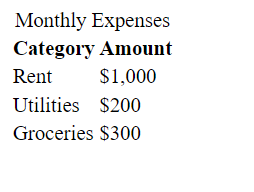
This HTML code creates a table displaying monthly expenses with two columns (Category and Amount). The <thead> element contains the header row, and the <tbody> element contains the data rows.
HTML tables are commonly used for various purposes, including displaying data tables, product lists, pricing tables, and more on websites. They can be styled using CSS to control their appearance and layout.
Cellpadding and Cellspacing Attributes :
The cellpadding and cellspacing attributes are HTML attributes used with the <table> element to control the spacing and padding within and around the cells of a table. These attributes affect the visual presentation of the table and can be used to adjust the spacing between table cells and their content.
cellpaddingAttribute:
- The
cellpaddingattribute is used to specify the amount of space or padding inside the individual table cells. - It accepts a numeric value in pixels (px) or as a percentage (%) of the cell’s width.
- Setting
cellpaddingadds space between the content of each cell and the cell’s border. - If not specified, the default value is typically 1 pixel. Example with
cellpaddingset to 10 pixels:
   <table cellpadding="10">
       <tr>
           <td>Cell 1</td>
           <td>Cell 2</td>
       </tr>
</table>Code language: HTML, XML (xml)cellspacingAttribute:
- The
cellspacingattribute is used to specify the amount of space or padding between adjacent table cells. - It also accepts a numeric value in pixels (px) or as a percentage (%).
- Setting
cellspacingadds space between the borders of adjacent cells. - If not specified, the default value is typically 2 pixels. Example with
cellspacingset to 5 pixels:
   <table cellspacing="5">
       <tr>
           <td>Cell 1</td>
           <td>Cell 2</td>
       </tr>
   </table>Code language: HTML, XML (xml)
It’s important to note that while cellpadding and cellspacing can be used to control the appearance of tables, they are considered somewhat outdated for modern web design. Instead, CSS (Cascading Style Sheets) is now the preferred method for controlling table layouts, spacing, and styling.
Here’s an example of how you can achieve similar spacing using CSS:
<style>
    table {
        border-collapse: collapse;
    }
    td, th {
        padding: 10px;
        border: 1px solid black;
    }
</style>Code language: CSS (css)
In this CSS example, border-collapse is set to “collapse” to remove any spacing between adjacent table borders, and the padding and borders of individual cells are controlled using CSS rules.
Using CSS provides more flexibility and control over the visual presentation of tables and is recommended for modern web development practices.
Example :
<table border="1" cellpadding="10" cellspacing="5">
  <tr>
    <td>Row 1, Cell 1</td>
    <td>Row 1, Cell 2</td>
  </tr>
  <tr>
    <td>Row 2, Cell 1</td>
    <td>Row 2, Cell 2</td>
  </tr>
</table>
Code language: HTML, XML (xml)
Output :
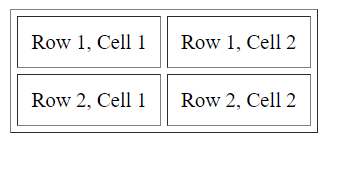
In this example:
border="1"adds a border to the table for visualization purposes.cellpadding="10"sets the padding (spacing between the cell content and the cell border) to 10 pixels.cellspacing="5"sets the spacing between cells (the gap between adjacent cells) to 5 pixels.
The result is a table with cells that have 10 pixels of padding around their content and 5 pixels of spacing between the cells. Adjust the values of cellpadding and cellspacing as needed to achieve the desired spacing in your table.
Colspan and Rowspan Attributes :
Certainly! The colspan and rowspan attributes in HTML are tools that allow you to control the structure and layout of tables, making it easier to create complex designs. Here’s what they do:
1. Colspan (colspan): This attribute is used to make a table cell span across multiple columns horizontally. It’s like merging cells to create a wider cell that covers more than one column. For instance, if you want a header cell to cover two columns, you would use colspan="2".
2. Rowspan (rowspan): This attribute is used to make a table cell span across multiple rows vertically. It’s like merging cells to create a taller cell that spans more than one row. For example, if you want a cell to cover two rows, you would use rowspan="2".
Here’s a simple example to illustrate these attributes:
<!DOCTYPE html>
<html lang="en">
<head>
    <title>Colspan and rowspan example</title>
</head>
<body>
    <table border="1">
        <tr>
            <th>Header 1</th>
            <th>Header 2</th>
        </tr>
        <tr>
            <td>Row 1, Cell 1</td>
            <td>Row 1, Cell 2</td>
        </tr>
        <tr>
            <td colspan="2">Spanning two columns</td>
        </tr>
        <tr>
            <td rowspan="2">Spanning two rows</td>
            <td>Row 3, Cell 2</td>
        </tr>
        <tr>
            <td>Row 4, Cell 2</td>
        </tr>
    </table>
</body>
</html>Code language: HTML, XML (xml)
Output :
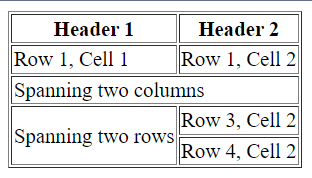
In this example:
- The first row has two header cells.
- The second row has two regular cells.
- The third row contains a cell that spans two columns horizontally.
- The fourth row contains a cell that spans two rows vertically, and the adjacent cell continues in the same column.
These attributes are useful when you want to create more complex table layouts or when you need to merge cells for design or data presentation purposes. They provide flexibility in structuring tables according to your specific needs.
Tables Backgrounds :
You can set the background color of an HTML table using the bgcolor attribute, which is applied to the <table> element itself. Here’s an example of setting the background color of a table using this attribute:
<!DOCTYPE html>
<html lang="en">
<head>
    <title>bgColor Example</title>
</head>
<body>
    <table bgcolor="lightgray" border="1">
        <tr>
            <td>Row 1, Cell 1</td>
            <td>Row 1, Cell 2</td>
        </tr>
        <tr>
            <td>Row 2, Cell 1</td>
            <td>Row 2, Cell 2</td>
        </tr>
    </table>
</body>
</html>Code language: HTML, XML (xml)
Output :
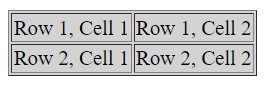
In this example, the bgcolor attribute is applied to the <table> element with the value “lightgray,” which sets the background color of the entire table to light gray.
Please note that using HTML attributes like bgcolor for styling is considered somewhat outdated in modern web design. It’s generally recommended to use CSS (Cascading Style Sheets) for styling HTML elements, including tables, as it provides more flexibility and control over the presentation of your content. Here’s the same table with CSS:
<!DOCTYPE html>
<html lang="en">
<head>
    <title>bgColor Example</title>
</head>
<body>
    <style>
        table {
            background-color: lightgray;
        }
    </style>

    <table border="1">
        <tr>
            <td>Row 1, Cell 1</td>
            <td>Row 1, Cell 2</td>
        </tr>
        <tr>
            <td>Row 2, Cell 1</td>
            <td>Row 2, Cell 2</td>
        </tr>
    </table>
</body>
</html>Code language: HTML, XML (xml)
Output :
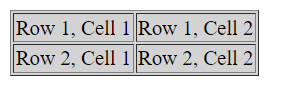
Using CSS for styling allows for better separation of content and presentation and is the preferred method for modern web development.
Table Caption :
In HTML, a table caption is a textual description or title that provides context or a brief summary of the table’s content. It is typically displayed above or below the table to help users understand the purpose or significance of the table. Here’s how you can add a table caption:
Caption Above the Table:
<!DOCTYPE html>
<html lang="en">
<head>
    <title>Caption Example</title>
</head>
<body>
    <table border="1">
        <caption>This is a table caption</caption>
        <tr>
            <th>Header 1</th>
            <th>Header 2</th>
        </tr>
        <tr>
            <td>Data 1</td>
            <td>Data 2</td>
        </tr>
    </table>
</body>
</html>Code language: HTML, XML (xml)
Output :
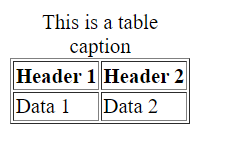
In this example, the <caption> element is placed above the table, providing a title or description for the table’s content.
Caption Below the Table:
<!DOCTYPE html>
<html lang="en">
<head>
    <title>Caption Example</title>
</head>
<body>
    <table border="1">
        <tr>
            <th>Header 1</th>
            <th>Header 2</th>
        </tr>
        <tr>
            <td>Data 1</td>
            <td>Data 2</td>
        </tr>
    </table>
    <caption>This is a table caption</caption>
</body>
</html>Code language: HTML, XML (xml)
Output :
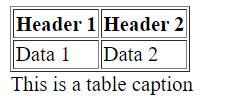
Here, the <caption> element is placed below the table, still providing context for the table but in a different visual position.
Table captions are a useful way to make your tables more accessible and informative, especially when the table’s purpose or data might not be immediately obvious to the viewer. Additionally, table captions improve the overall organization and presentation of your web content.
