HTML – Iframes
In HTML, an <iframe> (short for inline frame) is an element used to embed content from another web page or source within the current page. It allows you to include external web content, such as videos, maps, or other web pages, within your own web page. Here’s some information about iframes:
- Embedding External Content: You can use the
<iframe>element to embed content from an external source by specifying the source URL using thesrcattribute. For example, to embed a YouTube video, you would set thesrcattribute to the YouTube video’s URL. - Adjusting Dimensions: You can control the size of the iframe by setting the
widthandheightattributes. This allows you to specify the dimensions in pixels or as a percentage of the parent container. - Scrolling: If the embedded content is larger than the iframe’s dimensions, you can use the
scrollingattribute to enable or disable scrollbars within the iframe. - Responsive Design: You can make iframes responsive by using CSS techniques, such as setting a
max-widthof 100% and controlling the aspect ratio with padding or other techniques. - Security: When embedding content from external sources, consider security implications. Some websites may not allow their content to be embedded in iframes for security reasons.
Here’s a simple example of embedding a YouTube video using an iframe:
<!DOCTYPE html>
<html>
<head>
<title>YouTube Video Embed</title>
</head>
<body>
<h1>Check out this video:</h1>
<iframe width="560" height="315" src="https://www.youtube.com/embed/VIDEO_ID" frameborder="0" allowfullscreen></iframe>
</body>
</html>Code language: HTML, XML (xml)Output :
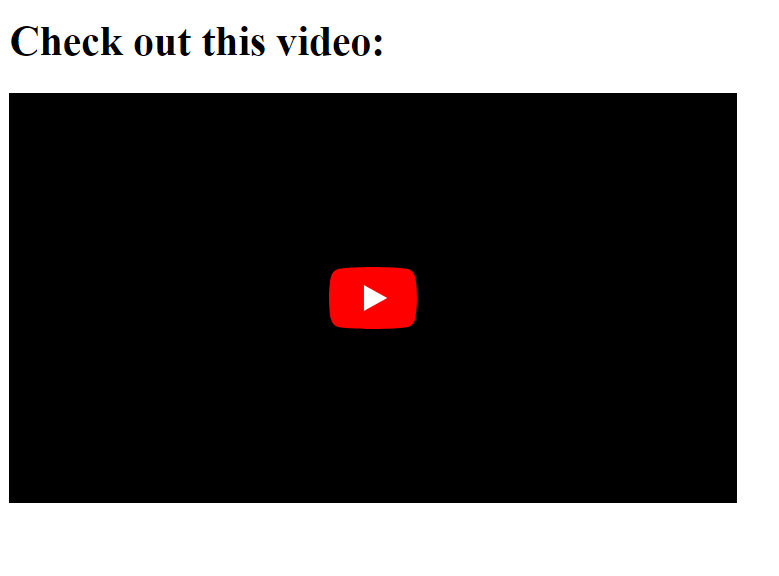
In this example, the <iframe> element embeds a YouTube video by specifying its URL in the src attribute. The width and height attributes define the dimensions of the iframe, and the allowfullscreen attribute allows the video to be viewed in fullscreen mode.
Iframes are a powerful tool for integrating external content into your web pages, but it’s important to use them responsibly and consider the impact on performance and security when embedding content from external sources.
<Iframe> Tag Attributes :
Certainly! The <iframe> tag in HTML supports various attributes that allow you to customize and control the behavior of the embedded frame. Here are some common attributes associated with the <iframe> tag:
src(Source): This attribute specifies the source URL of the content you want to embed within the iframe. It can point to a web page, video, map, or any other web resource.widthandheight: These attributes determine the dimensions (width and height) of the iframe. You can specify them in pixels or percentages, depending on your design needs.frameborder: This attribute controls whether a border should be displayed around the iframe. Setting it to “0” removes the border, while setting it to “1” displays a border.scrolling: Thescrollingattribute controls the display of scrollbars within the iframe. You can set it to “yes” (default), “no,” or “auto” to enable or disable scrollbars.allowfullscreen: When set to “true,” this attribute allows the embedded content to be viewed in fullscreen mode, such as for embedded videos.sandbox: Thesandboxattribute provides a security feature that restricts the iframe’s behavior to protect your web page from potential security risks. You can set various sandbox options, such as “allow-scripts” to enable JavaScript within the iframe.name: This attribute assigns a name to the iframe, which can be useful when targeting links or forms to load content into a specific frame.seamless: Theseamlessattribute is used to create a seamless integration between the iframe and the parent document, allowing styles to be inherited from the parent.title: This attribute provides a text description or title for the iframe. It’s valuable for accessibility and SEO purposes.loading: Introduced in HTML5, this attribute controls how the iframe’s content should be loaded. Options include “auto” (default), “eager,” and “lazy.”srcdoc: Instead of specifying an external source URL, you can use thesrcdocattribute to directly embed content within the iframe using HTML code.
Example :
<!DOCTYPE html>
<html>
<head>
    <title>Google Map Embed</title>
</head>
<body>
    <h1>Check out this location:</h1>
    <iframe
        src="https://www.google.com/maps/embed?pb=!1m18!1m12!1m3!1d3234.0031981931494!2d-122.08396298478462!3d37.386052979837465!2m3!1f0!2f0!3f0!3m2!1i1024!2i768!4f13.1!3m3!1m2!1s0x808fbbc0848e156d%3A0x6adba5614b28d07e!2sGolden%20Gate%20Bridge!5e0!3m2!1sen!2sus!4v1598874249879!5m2!1sen!2sus"
        width="300"
        height="350"
        frameborder="0"
        style="border:0;"
        allowfullscreen=""
        aria-hidden="false"
        tabindex="0"
    ></iframe>
</body>
</html>
Code language: HTML, XML (xml)
Output :
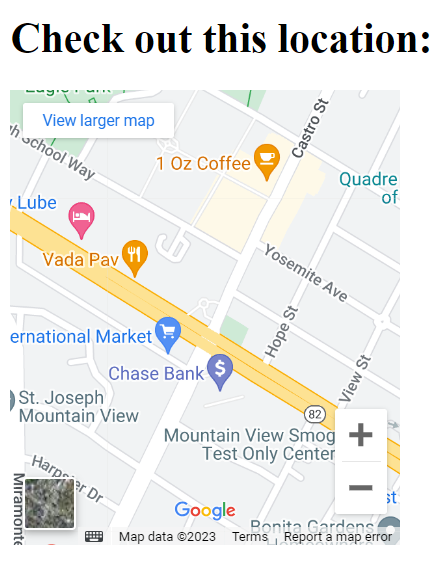
These attributes offer a range of customization options for embedding external content into your web pages while controlling its appearance, behavior, and security. Properly configuring these attributes ensures a seamless and secure integration of iframes within your web design.
