CSS – Scrollbars
In CSS, “scrollbars” are the vertical and horizontal bars that appear on the side or bottom of a web page or a specific element when the content exceeds the visible area. They allow users to scroll through content that doesn’t fit within the viewport.
Here are some key points about scrollbars in CSS:
- Overflow Property: Scrollbars are typically controlled using the CSS
overflowproperty. This property specifies how content should be handled when it overflows its containing element. overflow: auto;: This value of theoverflowproperty will show scrollbars only when the content overflows. If the content fits within the container, no scrollbars will appear.overflow: scroll;: This value always displays both vertical and horizontal scrollbars, even if there is no content overflow. It’s often used when you want to ensure scrollbars are always visible.overflow-xandoverflow-y: You can use these properties to control the overflow behavior separately for the horizontal and vertical directions.- Customizing Scrollbars: With newer CSS features, you can also customize the appearance of scrollbars, changing their colors, sizes, and other visual properties. However, browser support for these customizations may vary.
- Responsive Design: Scrollbars play a role in responsive web design. They allow users to access content on smaller screens or when the content area is limited.
In CSS, you can style scrollbars for elements with overflow content using the ::-webkit-scrollbar pseudo-element in webkit-based browsers (like Chrome and Safari). Here’s an example in HTML and CSS that demonstrates how to style scrollbars:
<!DOCTYPE html>
<html>
<head>
<style>
/* CSS styles to customize scrollbars */
/* Width and color of the thumb (the draggable bar) */
::-webkit-scrollbar-thumb {
background-color: #336699;
width: 10px;
}
/* Width and color of the track (the area the thumb moves on) */
::-webkit-scrollbar-track {
background-color: #f1f1f1;
}
/* Rounded corners for the thumb */
::-webkit-scrollbar-thumb:hover {
background-color: #555;
}
/* Styles for the corner of the scrollbar (only shown in horizontal/vertical scrolls) */
::-webkit-scrollbar-corner {
background-color: #ccc;
}
/* Width of the scrollbar arrows (for buttons at the ends) */
::-webkit-scrollbar-button {
width: 15px;
}
/* Width and color of the scrollbar grip (for resizing the thumb) */
::-webkit-scrollbar-thumb:active {
background-color: #888;
width: 12px;
}
/* Width and color of the scrollbar grip (for resizing the thumb) when hovered */
::-webkit-scrollbar-thumb:hover:active {
background-color: #555;
width: 12px;
}
/* Apply scrollbar styles to a scrollable div */
.scrollable-div {
width: 300px;
height: 200px;
overflow: auto;
border: 1px solid #ccc;
padding: 10px;
}
</style>
</head>
<body>
<h2>Customized Scrollbars</h2>
<div class="scrollable-div">
<!-- Add a long content to make the div scrollable -->
<p>Lorem ipsum dolor sit amet, consectetur adipiscing elit. Nullam cursus justo id nisi luctus, ut dictum nisl vehicula. Suspendisse a nulla id purus bibendum cursus ac eget libero. Phasellus facilisis purus vel massa congue, et dictum neque elementum. Sed gravida vel augue et mattis. Vestibulum eget arcu vel mi tristique eleifend. Quisque ut pharetra quam, in gravida augue.</p>
</div>
</body>
</html>Code language: HTML, XML (xml)Output :
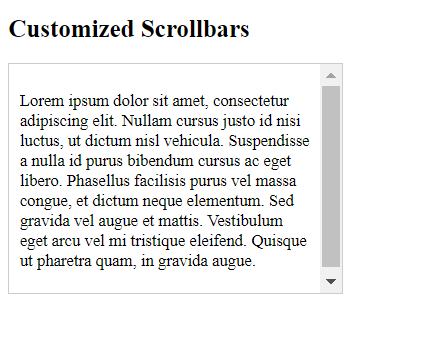
In this example:
- We use the
::-webkit-scrollbarpseudo-elements to customize various aspects of the scrollbars. - You can change the background color, width, and other styles to suit your design.
- The
.scrollable-divclass is applied to a<div>element with scrollable content, and we set itsoverflowproperty toautoto enable the scrollbars when the content exceeds the container’s dimensions.
When you open this HTML file in a webkit-based browser like Chrome or Safari, you will see a scrollable <div> with customized scrollbars according to the styles defined in the CSS. Please note that this styling may not work in all browsers, as it is specific to webkit-based browsers. Different browsers may have different methods for customizing scrollbars, and full cross-browser compatibility may require additional CSS rules.
Understanding how to work with scrollbars in CSS is essential for creating user-friendly and accessible web designs, especially when dealing with content-heavy websites or responsive layouts.
