---
title: "JavaScript – Events"
url: https://khanwaseem.com/blog/course/javascript-events
author: "khan Waseem"
published: 2023-09-27
updated: 2023-09-28
topics: ["course", "Javascript Tutorial"]
description: "JavaScript events empower web developers to create interactive web applications by enabling responsive reactions to user actions and input."
---

# JavaScript – Events

Table of Contents

[Toggle](#)

- [What is an Event?](#what-is-an-event)
- [onclick Event Type](#onclick-event-type)
- [onsubmit Event Type :](#onsubmit-event-type)
- [onmouseover and onmouseout :](#onmouseover-and-onmouseout)
- [HTML 5 Standard Events :](#html-5-standard-events)

## What is an Event?

In JavaScript, an event is a specific moment or occurrence that happens within a web page or application, typically triggered by user actions or interactions, but also by other factors like system notifications or changes in the program’s state. Events are fundamental for creating interactive and responsive experiences on the web.

Imagine events as signals or markers that inform your JavaScript code that something noteworthy has happened. These events can include actions like clicking a button, moving the mouse, pressing a key on the keyboard, submitting a form, or even loading a web page. They are essentially the building blocks of interactivity.

When an event occurs, JavaScript can be programmed to respond to it by executing specific code or functions. Event listeners are used to “listen” for these events on particular elements or objects, and they specify what actions should be taken when the event is detected. This allows developers to create dynamic and engaging user interfaces where the program reacts in real-time to user inputs.

In summary, events in JavaScript are essential for making web applications come alive. They enable developers to craft interactive and user-friendly experiences by responding to a wide range of user actions and system events.

## onclick Event Type

The `onclick` event type in JavaScript is a specific type of event that is triggered when a user clicks on an element in a web page, such as a button, a link, or an image. It’s like a virtual button press that the browser detects and reports to your JavaScript code.

Here’s how the `onclick` event works:

- **Element Interaction**: When a user interacts with an HTML element, such as clicking a button with a mouse or tapping it on a touchscreen device, the browser registers this action.

- **Event Detection**: The browser then detects this interaction and identifies the element that was clicked.

- **Event Triggering**: If there’s JavaScript code associated with the `onclick` event of that element, the code is executed at this point. This code can perform various actions, from showing a message to updating the content of the web page or submitting a form.

- **Event Handling**: In your JavaScript code, you can specify what should happen when the `onclick` event occurs. You do this by assigning a function (known as an event handler) to the element’s `onclick` property.

Here’s an example of how you can use the `onclick` event to display an alert message when a button is clicked:

```javascript
<!DOCTYPE html>
<html>
<head>
    <title>Click Me</title>
</head>
<body>
    <button id="myButton">Click Me</button>

    <script>
        // Get a reference to the button element
        const button = document.getElementById('myButton');

        // Define a function to be executed when the button is clicked
        function showAlert() {
            alert('Button clicked!');
        }

        // Assign the function as an event handler to the onclick event
        button.onclick = showAlert;
    </script>
</body>
</html>Code language: JavaScript (javascript)
```

**Output : **

![](https://blogkhanwaseem.s3.amazonaws.com/uploads/2023/09/27172339/image-243-1024x196.png)

**In this example:**

- We first obtain a reference to the button element using `getElementById`.

- We define a function called `showAlert`, which displays an alert message.

- We assign the `showAlert` function to the `onclick` event of the button using `button.onclick = showAlert`.

Now, when the button is clicked, the `showAlert` function is executed, and an alert with the message “Button clicked!” is displayed.

The `onclick` event is just one of many event types in JavaScript, but it’s particularly useful for creating interactive elements on web pages.

## onsubmit Event Type :

The `onsubmit` event type is a fundamental part of web development. It is used in HTML and JavaScript to trigger a specific function or set of actions when a user submits a form on a web page. This event is commonly associated with the `<form>` element in HTML, and it allows developers to define what should happen when a user clicks the “submit” button within a form.

For example, when a user fills out a login form with their username and password and clicks the “Submit” button, the `onsubmit` event can be used to validate the input data, send it to a server for processing, or perform other custom actions such as displaying a confirmation message or redirecting the user to another page.

Here’s a simple example of how the `onsubmit` event can be used in HTML and JavaScript:

```javascript
<!DOCTYPE html>
<html>
<head>
  <title>Sample Form</title>
</head>
<body>

<form id="myForm" onsubmit="return validateForm()">
  <label for="username">Username:</label>
  <input type="text" id="username" name="username"><br><br>

  <label for="password">Password:</label>
  <input type="password" id="password" name="password"><br><br>

  <input type="submit" value="Submit">
</form>

<script>
function validateForm() {
  // Perform form validation here
  var username = document.getElementById("username").value;
  var password = document.getElementById("password").value;

  if (username === "" || password === "") {
    alert("Please fill out both fields");
    return false; // Prevent form submission
  }

  // Additional validation and form submission logic can go here

  return true; // Allow form submission
}
</script>

</body>
</html>Code language: JavaScript (javascript)
```

**Output : **
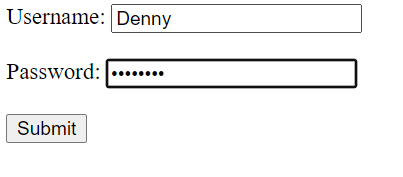
![](https://blogkhanwaseem.s3.amazonaws.com/uploads/2023/09/27172841/image-244.png)

In this example, the `onsubmit` attribute is added to the `<form>` element, specifying the `validateForm()` function to be executed when the form is submitted. Inside the `validateForm()` function, we check if the username and password fields are empty. If they are, we display an alert and return `false` to prevent the form from being submitted. Otherwise, the form submission continues.

In summary, the `onsubmit` event type is crucial for adding interactivity and functionality to web forms, enabling developers to control and validate user input before processing it or taking any further actions.

## onmouseover and onmouseout :

Certainly! The `onmouseover` and `onmouseout` events are two essential event types in web development that allow for interactivity with web elements like images, buttons, or links. They are often used to enhance user experience and provide visual feedback.

**`onmouseover` Event:**

The `onmouseover` event occurs when the mouse pointer moves over an element on a web page. It’s often used to trigger actions like changing the appearance of an element when a user hovers their mouse over it. For instance, you might use `onmouseover` to change the color of a button when a user hovers over it, or display additional information when hovering over an image.

Here’s a simple example:

```javascript
<!DOCTYPE html>
<html>
<head>
  <title>Mouse Events</title>
  <style>
    #myButton {
      background-color: #3498db;
      color: #fff;
    }
    #myButton:hover {
      background-color: #2980b9;
    }
  </style>
</head>
<body>

<button id="myButton" onmouseover="changeColor()">Hover Me</button>

<script>
function changeColor() {
  // Change the button's color when hovered
  document.getElementById("myButton").style.backgroundColor = "#e74c3c";
}
</script>

</body>
</html>Code language: JavaScript (javascript)
```

**Output : **

![](https://blogkhanwaseem.s3.amazonaws.com/uploads/2023/09/27173121/image-245.png)

In this example, the `onmouseover` event is used to call the `changeColor()` function when the mouse pointer hovers over the button. This function changes the button’s background color.

**`onmouseout` Event:**

Conversely, the `onmouseout` event occurs when the mouse pointer exits or moves away from an element. It’s often used to revert an element’s state to its original appearance or to hide additional information when the user stops hovering.

Here’s an example:

```javascript
<!DOCTYPE html>
<html>
<head>
  <title>Mouse Events</title>
  <style>
    #myImage {
      width: 200px;
    }
  </style>
</head>
<body>

<img id="myImage" src="image.jpg" onmouseover="showCaption()" onmouseout="hideCaption()" alt="Image">

<div id="caption" style="display: none;">This is a beautiful image.</div>

<script>
function showCaption() {
  // Display the caption when mouse hovers over the image
  document.getElementById("caption").style.display = "block";
}

function hideCaption() {
  // Hide the caption when mouse moves away from the image
  document.getElementById("caption").style.display = "none";
}
</script>

</body>
</html>Code language: JavaScript (javascript)
```

**Output : **

![](https://blogkhanwaseem.s3.amazonaws.com/uploads/2023/09/27173232/image-246.png)

In this example, the `onmouseover` event is used to call `showCaption()` to display a caption when the mouse hovers over the image, and the `onmouseout` event calls `hideCaption()` to hide the caption when the mouse moves away from the image.

These events are valuable for creating engaging and interactive web interfaces by providing immediate visual feedback to users as they interact with elements on a web page.

## HTML 5 Standard Events :

**Attribute** | **Value** | **Description**
**Offline** | **script** | A browser event triggered when a device offline.
**Onabort** | **script** | Occurs when an image or resource loading is aborted.
**onafterprint** | **script** | Fired after a document is successfully printed.
**onbeforeonload** | **script** | Triggers before a webpage or resource is loaded.
**onbeforeprint** | **script** | Occurs before a document is sent to the printer.
**onblur** | **script** | Fired when an element loses focus.
**oncanplay** | **script** | Triggered when media elements can start playing.
**oncanplaythrough** | **script** | Occurs when media is ready to play without interruptions, ideal for ensuring smooth playback.
**onchange** | **script** | Fired when the value of an input element changes, often used for form validation and user interaction.
**onclick** | **script** | Activated when a user clicks an element.
**oncontextmenu** | **script** | Triggered when the user right-clicks, allowing developers to customize context menus and interactions.
**ondblclick** | **script** | Fired when an element is double-clicked.
**ondrag** | **script** | Occurs during an element’s drag operation.
**ondragend** | **script** | Triggered when a drag-and-drop operation is completed.
**ondragleave** | **script** | Fired when a draggable element leaves the boundaries of a target element during a drag-and-drop operation.
**ondragover** | **script** | Occurs when a draggable element is being dragged over a target.
**ondragstart** | **script** | Triggered when a user starts to drag an element.
**ondrop** | **script** | Activated when a draggable element is dropped onto a target element.
**ondurationchange** | **script** | Fired when the duration of a media element (e.g., audio or video) changes, providing information for dynamic control.
**onemptied** | **script** | Occurs when a media element (e.g., audio or video) is emptied.
**onended** | **script** | Triggered when a media element, such as audio or video, reaches its end.
**onerror** | **script** | Fired when an error occurs while loading or executing an element.
**onfocus** | **script** | Activates when an element gains focus, typically used for user interface enhancements or form validation.
**onformchange** | **script** | Triggers when a form’s content changes.
**onforminput** | **script** | Fired when user input within a form element changes.
**onhaschange** | **script** | Triggers when the document has change.
**oninput** | **script** | Triggered when the value of an input element changes, providing real-time monitoring and interaction with user input.
**oninvalid** | **script** | Occurs when a form element’s input is invalid.
**onkeydown** | **script** | Activated when a keyboard key is pressed down.
**onkeypress** | **script** | Fired when a key on the keyboard is pressed down and held.
**onkeyup** | **script** | Triggered when a keyboard key is released.
**onload** | **script** | Occurs when a web page or an element finishes loading.
**onloadeddata** | **script** | Fired when media data (e.g., audio or video) is loaded and can be played.
**onloadedmetadata** | **script** | riggered when metadata for media (e.g., audio or video) is loaded.
**onloadstart** | **script** | Occurs when loading of a resource (e.g., an image) begins.
**onmessage** | **script** | Activated when a message is received from another window or iframe, facilitating inter-window communication.
**onmousedown** | **script** | Triggered when a mouse button is pressed down over an element.
**onmousemove** | **script** | Fired as the mouse pointer moves over an element.
**onmouseout** | **script** | Activated when the mouse pointer exits an element, often used for tasks like hiding tooltips or resetting styles.
**onmouseover** | **script** | Triggered when the mouse pointer enters an element, commonly used for implementing hover effects and interactivity.
**onmouseup** | **script** | Fired when a mouse button is released after a click.
**onmousewheel** | **script** | Activated when the mouse wheel is scrolled.
**onoffline** | **script** | Fired when a device loses internet connectivity.
**onoine** | **script** | Triggered when a device establishes an internet connection.
**ononline** | **script** | Fired when a device reconnects to the internet.
**onpagehide** | **script** | Activated when a web page is about to be hidden or unloaded.
**onpageshow** | **script** | Triggered when a hidden or previously unloaded web page becomes visible again, facilitating post-loading actions.
**onpause** | **script** | Fired when media playback, such as audio or video, is paused.
**onplay** | **script** | Activated when media playback, like audio or video, starts or resumes.
**onplaying** | **script** | Triggered when media playback, such as audio or video, starts playing.
**onpopstate** | **script** | Fired when the browser’s history changes due to forward or backward navigation.
**onprogress** | **script** | Occurs as data is being loaded.
**onratechange** | **script** | Triggered when the playback rate of media, like audio or video, is altered.
**onreadystatechange** | **script** | Fired when the ready state of an AJAX request or an element’s state changes.
**onredo** | **script** | Activated when the user performs a ‘redo’ action.
**onresize** | **script** | Triggered when the browser window is resized.
**onscroll** | **script** | Fired as a user scrolls a web page.
**onseeking** | **script** | Triggered when a media element seeks a new position during playback.
**onselect** | **script** | Fired when a user selects text within an input field or text area.
**onstalled** | **script** | Occurs when media playback, like audio or video, temporarily stops due to buffering or other issues.
**onstorage** | **script** | Triggered when changes are made to the local storage or session storage.
**onsubmit** | **script** | Activated when a user submits a form.
**onsuspend** | **script** | Fired when media playback, such as audio or video, is temporarily halted.
**ontimeupdate** | **script** | Triggered as a media element’s playback time updates.
**onundo** | **script** | Activated when the user performs an ‘undo’ action.
**onunload** | **script** | Fired when a user navigates away from a webpage.
**onvolumechange** | **script** | riggered when the volume of media, such as audio or video, is adjusted.
**onwaiting** | **script** | Occurs when media playback, like audio or video, is temporarily paused due to buffering.

### Related posts:

[HTML – Embed Multimedia](https://blog.khanwaseem.com/html-embed-multimedia/)
[HTML – Attributes](https://blog.khanwaseem.com/html-attributes/)
[JavaScript – Multimedia](https://blog.khanwaseem.com/javascript-multimedia/)
[JavaScript – Dialog Boxes](https://blog.khanwaseem.com/javascript-dialog-boxes/)

Powered by [YARPP](https://yarpp.com).
