---
title: "HTML – Image"
url: https://khanwaseem.com/blog/course/html-image
author: "khan Waseem"
published: 2023-09-20
updated: 2023-09-20
topics: ["course", "HTML Tutorial"]
description: "Enhance web content with HTML images. Learn to insert, optimize, and make images accessible for a visually appealing and user-friendly website"
---
# HTML – Image
In HTML, images play a vital role in enhancing the visual appeal and content of web pages. Here’s an explanation of how images are used in HTML:
**1. Inserting Images:**
To add an image to an HTML page, you use the `![]() ` tag. Here’s the basic syntax:
```xml
 Code language: HTML, XML (xml)
```
- `src` (source): This attribute specifies the path or URL to the image file.
- `alt` (alternative text): This attribute provides a brief description of the image. It’s important for accessibility, as it’s displayed if the image can’t be loaded and read aloud by screen readers. Example:
```xml
 Code language: HTML, XML (xml)
```
**2. Image Formats:**
HTML supports various image formats, including JPEG, PNG, GIF, SVG, and more. The choice of format depends on factors like image quality and transparency requirements.
**3. Image Dimensions:**
You can set the width and height of an image using the `width` and `height` attributes. This is useful for controlling the image’s size on the webpage.
Example:
```xml
Code language: HTML, XML (xml)
```
**4. Image Accessibility:**
It’s crucial to ensure that images are accessible to all users, including those with disabilities. Provide descriptive and meaningful alt text, and consider using responsive images for different screen sizes and resolutions.
**5. Lazy Loading:**
To improve page loading performance, you can use the `loading="lazy"` attribute. This tells the browser to load the image only when it’s visible in the user’s viewport, reducing initial page load times.
Example:
```xml
Code language: HTML, XML (xml)
```
**6. Image Links:**
Images can be turned into links by wrapping them in an `` (anchor) tag. This is commonly used for clickable banners or navigation elements.
Example:
```xml
 Code language: HTML, XML (xml)
```
**7. Image Maps:**
HTML also supports image maps, which allow you to define clickable regions within an image. Each region can link to a different URL.
Example:
```xml
 Code language: HTML, XML (xml)
```
**8. Responsive Images:**
For better responsiveness, you can use CSS or frameworks like Bootstrap to make images adapt to different screen sizes and devices.
**Example : **
In HTML, you can display images using the `
![]() ` element. Here’s an example of how to include images in an HTML document:
```xml
Images Example
Images Example

 Code language: HTML, XML (xml)
```
**Output : **
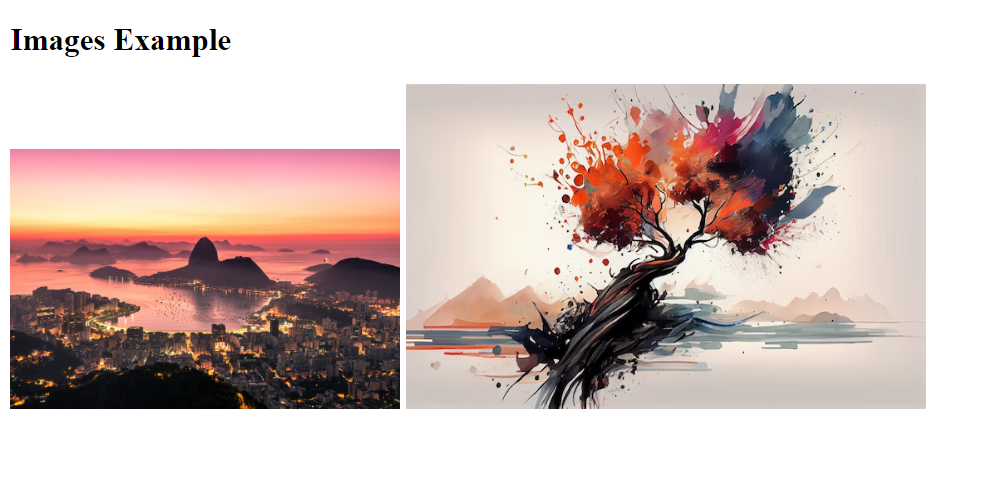
**In this example:**
- We have a basic HTML document with a heading (`
`).
- We use the `![]() ` element to display images.
- To display an image from a local file, we set the `src` attribute to the file’s path relative to the HTML document. In this case, the image file is named “example.jpg.”
- To display an image from a remote URL, we set the `src` attribute to the URL of the image. In this case, we use a placeholder URL, “**[https://img.freepik.com/free-photo/abstract-nature-painted-with-watercolor-autumn-leaves-backdrop-generated-by-ai_188544-9806.jpg](https://img.freepik.com/free-photo/abstract-nature-painted-with-watercolor-autumn-leaves-backdrop-generated-by-ai_188544-9806.jpg)**“
- The `alt` attribute provides alternative text for the image, which is important for accessibility and SEO. It should describe the image’s content.
- The `width` and `height` attributes specify the dimensions of the image in pixels. These attributes are optional, but they help browsers allocate space for the image before it loads, preventing layout shifts.
When you open this HTML file in a web browser, you will see the images displayed within the document. You can replace the image sources and attributes with the actual paths or URLs of your images.
In summary, images in HTML serve not only to make web pages visually appealing but also to convey information and engage users effectively. Properly optimizing and structuring images is crucial for a better user experience and accessibility.
### Related posts:
[CSS – Table](https://blog.khanwaseem.com/css-table/)
[CSS – Text](https://blog.khanwaseem.com/css-text/)
[HTML – Tables](https://blog.khanwaseem.com/html-tables/)
[HTML – Attributes](https://blog.khanwaseem.com/html-attributes/)
Powered by [YARPP](https://yarpp.com).