---
title: "HTML – Image Links"
url: https://khanwaseem.com/blog/course/html-image-links
author: "khan Waseem"
published: 2023-09-20
updated: 2023-09-20
topics: ["course", "HTML Tutorial"]
description: "Discover engaging image links in web design. Learn how to create clickable images that enhance user interaction and visual appeal on your website."
---
# HTML – Image Links
In HTML, you can create image links, which are clickable images that lead to other web pages or resources. This is a powerful way to make your website more visually engaging and interactive. Here’s how you can create image links:
- **Basic Image Link:**
To create a basic image link, you can use the `` (anchor) element and wrap an `![]() ` (image) element within it. Here’s an example:
```xml
Basic Image example
 Code language: HTML, XML (xml)
```
**Output : **

In this example, the `` element surrounds the `
![]() ` element, making the image clickable. When a user clicks on the image, it will take them to the specified URL.
- **Image Link with Hover Effects:**
You can add hover effects to your image links using CSS to provide visual feedback to users when they hover over the image. Here’s an example:
```xml
Image Link with Hover Effects
Code language: HTML, XML (xml)
```
**Output : **
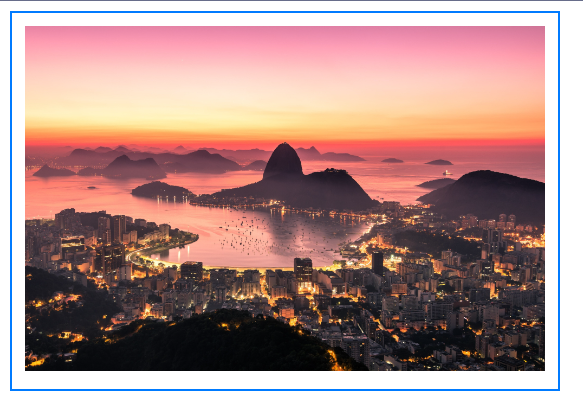
In this example, when a user hovers over the image, the border color changes to blue, providing a visual cue that the image is clickable.
- **Image Link with Custom Styling:**
You can customize the styling of image links further by applying CSS styles to them. This allows you to control the appearance, such as size, padding, and background.
```xml
Image Link with Hover Effects
Code language: HTML, XML (xml)
```
**Output : **

This example styles the image link with a light gray background, centered text, and padding for better visual presentation.
Image links are a valuable addition to web design, as they combine the visual appeal of images with the functionality of hyperlinks. They can be used for a variety of purposes, including navigation, calls to action, and image galleries.
### Related posts:
[CSS – Border](https://blog.khanwaseem.com/css-border/)
[CSS – Links](https://blog.khanwaseem.com/css-links/)
[CSS – Table](https://blog.khanwaseem.com/css-table/)
[CSS – Pseudo Classes](https://blog.khanwaseem.com/css-pseudo-classes/)
Powered by [YARPP](https://yarpp.com).