This is red text.
This is blue text.
This is green text.
Code language: HTML, XML (xml) ``` **Output : ** 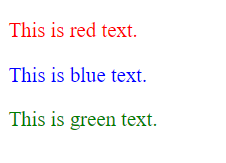 **In this example : ** In this example: - We define three CSS classes, `.red-text`, `.blue-text`, and `.green-text`, each with a different `color` value. - The `.red-text` class sets the text color to red. - The `.blue-text` class sets the text color to blue. - The `.green-text` class sets the text color to green. As a result, each paragraph demonstrates a different text color based on the CSS class applied to it. You can specify any valid color value in CSS, including color names (e.g., “red,” “blue”), hexadecimal color codes (e.g., “#FF0000” for red), RGB values, or HSL values, to control the text color as desired. **2.Text-Align**: “Text-align” is a CSS property used to control the horizontal alignment of text within an element. It can be set to values like “left,” “right,” “center,” or “justify” to determine how the text aligns within its container. **Example : ** ```xmlThis paragraph is center-aligned.
This paragraph is right-aligned.
This paragraph is left-aligned.
This paragraph is justify-aligned.
Lorem ipsum dolor sit amet, consectetur adipiscing elit. Sed quis ante at nunc placerat.
Curabitur ac velit et orci varius malesuada vel sit amet odio.
Suspendisse potenti. Nulla facilisi. Donec nec sem at ipsum bibendum malesuada vel eget nulla.
مرحبًا بك في موقع الويب الخاص بنا.
هذا مثال على النص باتجاه من اليمين إلى اليسار.
This is a paragraph with an indented first line.
Code language: HTML, XML (xml) ``` **Output : **  **In this example:** - We define a CSS class **`.indented-paragraph`.** - We set the **`text-indent` **property to `**20px**`, which indents the first line of text within elements with this class by 20 pixels. As a result, the first line of the paragraph with the class `**.indented-**`**`paragraph` **is indented by 20 pixels, creating a visual separation between the first line and the rest of the text. This is often used for stylistic or formatting purposes in documents like essays and articles. **6.Letter-Spacing**: “Letter-spacing” allows you to control the spacing between individual characters in a block of text. It can be used to increase or decrease the space between letters for stylistic or readability purposes. **Example : ** ```xmlThis is a paragraph with increased letter spacing. The CSS property letter-spacing is set to 2 pixels, which adds space between each character in this paragraph.
Code language: HTML, XML (xml) ``` **Output : **  **In this example:** - We define a CSS class `**.spaced-text**`. - We set the **`letter-spacing` **property to `**6px**`, which adds 6 pixels of spacing between each character within elements with this class. As a result, the text within the paragraph with the class `**.spaced-text**` has increased letter spacing, making the characters appear further apart. This can be used for stylistic effects or to improve the readability of text, especially in specific design contexts. **7.Word-Spacing**: Similar to “letter-spacing,” “word-spacing” controls the spacing between words in a block of text. It can be adjusted to modify the overall spacing between words for design or readability reasons. **Example : ** ```xmlThis is a paragraph without spacing.
This is a paragraph with increased letter spacing.
Code language: HTML, XML (xml) ``` **Output : ** 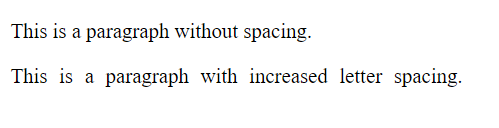 **In this example:** - We define a CSS class `**.spaced-text**`. - We set the `**word-spacing**` property to `**5px**`, which adds 5 pixels of spacing between each word within elements with this class. **8.White-Space**: The “white-space” property determines how white spaces, such as spaces and line breaks, are handled within an element. It can be set to values like “normal,” “nowrap,” or “pre” to control text wrapping and spacing. **Example : ** ```xmlThis is a paragraph with white-space set to nowrap. It prevents the text from wrapping to the next line, even if the content exceeds the width of the container.
Code language: HTML, XML (xml) ``` **Output : **  **In this example:** - We define a CSS class **`.nowrap-text`.** - We set the `**white-space**` property to `**nowrap**`, which prevents the text within elements with this class from wrapping to the next line. As a result, the text within the paragraph with the class `**.nowrap-text**` does not wrap to the next line, even if it exceeds the width of the container. This can be useful when you want to display code snippets, URLs, or other content where line breaks should be strictly controlled. **9.Text-Decoration**: “Text-decoration” is used to add decorative styling to text, such as underlines, overlines, or strikethroughs. It can be set to values like “underline,” “overline,” “line-through,” or “none” to control these decorations. **Example : ** ```xmlThis text has an underline.
This text has an overline.
This text has a strikethrough.
This text has no decoration.
Code language: HTML, XML (xml) ``` **Output : ** 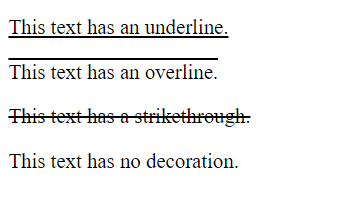 **In this example:** - We define multiple CSS classes, each with a different `**text-decoration**` value. - The `**.underlined-text**` class applies an underline to the text. - The `**.overlined-text**` class applies an overline to the text. - The `**.strikethrough-text**` class applies a strikethrough to the text. - The `**.no-decoration**` class removes any text decoration. As a result, each paragraph demonstrates a different text decoration style: underlined, overlined, strikethrough, or no decoration at all, depending on the CSS class applied to it. **10.Text-Decoration-Skip**: “Text-decoration-skip” is a CSS property that specifies which elements, such as inline boxes or punctuation, should be skipped when applying text decorations like underlines or overlines. **Example : ** ```xmlThis is some text with underlining. Spaces should be skipped.
This is some text with overlining. In some characters, ink is skipped.
Code language: HTML, XML (xml) ``` **Output : **  **In this example:** - We define two CSS classes, `**.underline-skip**` and `**.overline-skip**`, each with different `**text-decoration**` and `**text-decoration-skip**` values. - The `**.underline-skip**` class applies an underline to the text and specifies that spaces should be skipped when underlining. - The `**.overline-skip**` class applies an overline to the text and specifies that ink should be skipped when overlining. As a result, the first paragraph demonstrates text underlining where spaces are skipped, and the second paragraph demonstrates text overlining where ink in some characters is skipped according to the specified `**text-decoration-skip**` values. This allows for precise control over which elements should be affected by text decorations. **11.Text-Decoration-Skip-Ink**: “Text-decoration-skip-ink” is a more refined property that controls how ink (the actual characters in the text) should be skipped when applying text decorations. It helps ensure that decorations don’t overlap or interfere with the text. **Example : ** ```xmlThis is underlined text.
This is overlined text. Some ink may not be skipped.
Code language: HTML, XML (xml) ``` **Output : ** 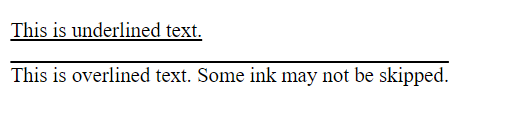 **In this example:** - We define two CSS classes, `**.underlined-text**` and `**.overlined-text**`. - The `**.underlined-text**` class applies an underline to the text and specifies `**text-decoration-skip-ink: auto;**`, allowing the browser to handle ink skipping based on its default behavior. - The `**.overlined-text**` class applies an overline to the text and specifies `**text-decoration-skip-ink: none;**`, which means that no ink should be skipped when overlining. Please note that the actual behavior of **`text-decoration-skip-ink` **may depend on the browser’s support and specific implementation. Always verify compatibility with your target browsers before relying on this property in production. **12.Text-Transform**: “Text-transform” is used to change the capitalization of text within an element. It can be set to values like “uppercase,” “lowercase,” or “capitalize” to modify how text is displayed. **Example : ** ```xmlthis text is transformed to uppercase.
THIS TEXT IS TRANSFORMED TO LOWERCASE.
this text is capitalized.
Code language: HTML, XML (xml) ``` **Output : ** 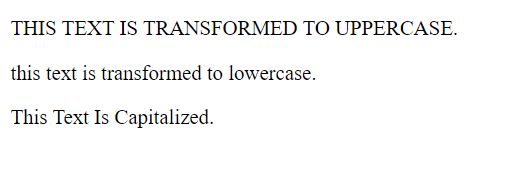 **In this example:** - We define three CSS classes, `**.uppercase-text**`, `**.lowercase-text**`, and `**.capitalize-text**`, each with a different `**text-transform**` value. - The `**.uppercase-text**` class converts text to uppercase. - The `**.lowercase-text**` class converts text to lowercase. - The `**.capitalize-text**` class capitalizes the first letter of each word. As a result, each paragraph demonstrates a different text transformation style: uppercase, lowercase, or capitalized, depending on the CSS class applied to it. **13.Text-Emphasis**: “Text-emphasis” is a CSS property used to apply emphasis marks to text. Emphasis marks can be dots, circles, or other symbols placed above or below characters to draw attention to specific text. **Exmaple : ** ```xmlThis is emphasized text with dots.
Code language: HTML, XML (xml) ``` **Output : ** 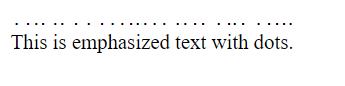 **In this example:** - We define a CSS class **`.emphasized-text`.** - We set the `**text-emphasis**` property to `**dot**`, which adds dots as emphasis marks to the text within elements with this class. As a result, the text within the paragraph with the class `**.emphasized-text**` has dots added as emphasis marks, drawing attention to the text. The appearance of the emphasis marks may vary depending on the browser and CSS settings, but this example demonstrates the basic usage of the `**text-emphasis**` property. **14.Text-Shadow**: “Text-shadow” allows you to add shadows to text, creating a visual effect that adds depth and dimension. You can specify parameters like the shadow’s color, blur radius, and horizontal and vertical offsets. **Example: ** ```xmlThis is some text with a shadow effect applied using CSS.
Code language: HTML, XML (xml) ``` **Output : ** 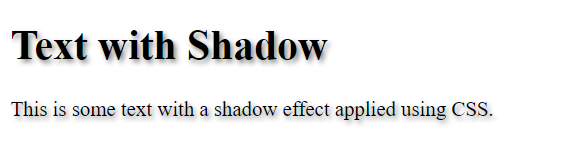 **In this example:** - We define a CSS class **`.shadowed-text`.** - We set the `**text-shadow**` property to `**2px 2px 4px #888**`, which specifies the shadow’s horizontal offset, vertical offset, blur radius, and color. `**2px**` is the horizontal offset. - `**2px**` is the vertical offset. - `**4px**` is the blur radius, which controls the spread of the shadow. - `**#888**` is the color of the shadow, specified as a hexadecimal code. As a result, the text within the elements with the class `**.shadowed-text**` will have a shadow effect applied to it. The shadow in this example is a subtle gray shadow that adds depth to the text, making it appear as if it’s lifted off the page. You can adjust the values in the `**text-shadow**` property to achieve different shadow effects. **15.Line-Break**: “Line-break” is a CSS property that controls how lines are broken within a block of text. It can be set to values like “auto,” “loose,” or “normal” to determine how and where lines are broken when text wraps. **Example : ** ```xmlThis is a long paragraph with automatic line breaking enabled. It will wrap to the next line when necessary to fit the container width.
This is a long paragraph with loose line breaking enabled. Lines may break more freely within words to fit the container width.
This is a long paragraph with normal line breaking. Lines will break at spaces and word boundaries to fit the container width.
Code language: HTML, XML (xml) ``` **Output** : 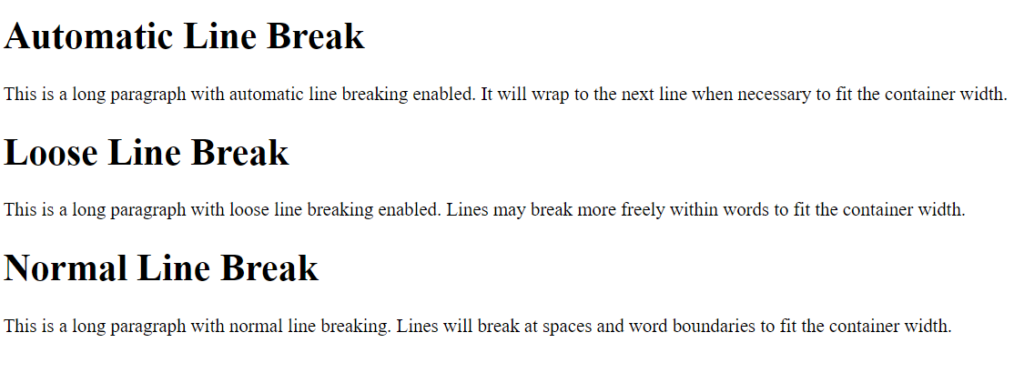 **In this example:** - We define three CSS classes, **`.line-break-auto`, `.line-break-loose`**, and `**.line-break-normal**`, each with different `**line-break**` values. - The `**.line-break-auto**` class enables automatic line breaking, allowing lines to wrap to the next line when necessary to fit the container width. - The `**.line-break-loose**` class enables loose line breaking, which may break lines more freely within words to fit the container width. - The `**.line-break-normal**` class uses normal line breaking, where lines break at spaces and word boundaries to fit the container width. As a result, each paragraph demonstrates a different line-breaking behavior based on the CSS class applied to it. You can choose the line-breaking style that best suits your design and content layout needs. **16.Word-Break**: “Word-break” is a CSS property that determines how words are broken when they exceed the container’s width. It can be set to values like “normal” or “break-all” to control word wrapping and breaking behavior. **Example : ** ```xmlThis is a longwordthatshouldnotbreak, but will break normally when necessary to fit the container width.
Thisisalongwordthatwillbreakwherevernecessarytosatisfycontainerwidth.
Thisisalongwordthatshouldnotbreak, and it will keep words together as much as possible to fit the container width.
Code language: HTML, XML (xml) ``` **Output : ** 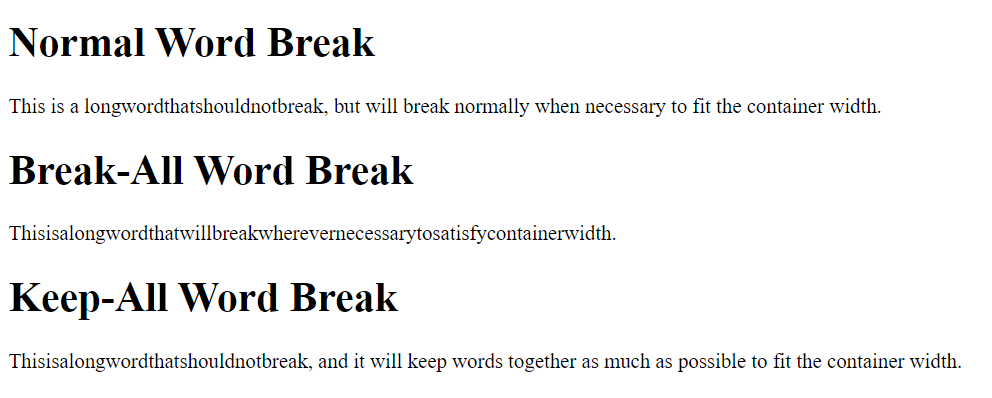 **In this example:** - We define three CSS classes, `**.normal-word-break**`, `**.break-all-word-break**`, and `**.keep-all-word-break**`, each with different `**word-break**` values. - The `**.normal-word-break**` class enables normal word breaking, where words break at spaces and word boundaries to fit the container width. - The `**.break-all-word-break**` class enables `**break-all**` word breaking, which allows words to break wherever necessary to satisfy the container width. - The `**.keep-all-word-break**` class uses `**keep-all**` word breaking, which keeps words together as much as possible to fit the container width. As a result, each paragraph demonstrates a different word-breaking behavior based on the CSS class applied to it. You can choose the word-breaking style that best suits your design and content layout needs. These CSS properties and terms provide fine-grained control over text presentation and layout, allowing web designers and developers to create visually appealing and readable content on websites. ### Related posts: [CSS – Links](https://blog.khanwaseem.com/css-links/) [CSS – Fonts](https://blog.khanwaseem.com/css-fonts/) [CSS – Table](https://blog.khanwaseem.com/css-table/) [CSS – Border](https://blog.khanwaseem.com/css-border/) Powered by [YARPP](https://yarpp.com).