---
title: "CSS – Table"
url: https://khanwaseem.com/blog/course/css-table
author: "khan Waseem"
published: 2023-09-14
updated: 2023-09-14
topics: ["course", "CSS Tutorial"]
description: "Learn how to enhance the visual appeal and readability of tables in web design with CSS styling techniques for borders, colors, and layout."
---
# CSS – Table
Certainly! In web development, tables are used to organize and present data in a structured format. CSS (Cascading Style Sheets) allows you to style tables, making them visually appealing and easier to read. Here’s how you can work with CSS to style tables:
**1. Table Borders (`border`):**
You can control the borders of the table, including the border color, width, and style using the `border` property. This helps define the table’s boundaries.
You can use the `border` property in CSS to add borders to HTML tables. Here’s an example of how to create a table with borders:
```xml
| Header 1 |
Header 2 |
| Row 1, Cell 1 |
Row 1, Cell 2 |
| Row 2, Cell 1 |
Row 2, Cell 2 |
Code language: HTML, XML (xml)
```
**Output : **
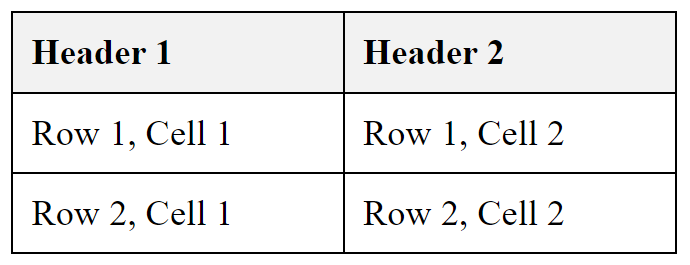
**In this example:**
- We use the `border-collapse` property to collapse the borders of the table into a single border, creating a cleaner look.
- We add a 1px solid black border to both table headers (`th`) and table data cells (`td`) using the `border` property.
- We set padding and text alignment for better presentation.
- We style the table header with a background color to make it stand out.
This results in a table with borders around each cell and a background color for the table header. You can customize the border style, color, and width to achieve the desired appearance for your table.
**2. Table Width and Layout (`width`, `table-layout`):**
You can set the width of the table and specify how it should behave regarding its layout. This is useful for responsive design.
You can control the width and layout of an HTML table using the `width` and `table-layout` properties in CSS. Here’s an example that demonstrates how to do this:
```xml
| Header 1 |
Header 2 |
| Row 1, Cell 1 |
Row 1, Cell 2 |
| Row 2, Cell 1 |
Row 2, Cell 2 |
Code language: HTML, XML (xml)
```
**Output : **
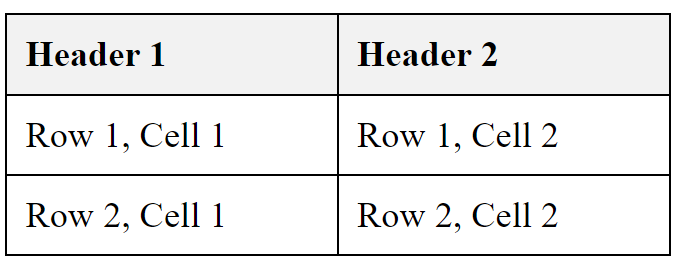
In this example:
- We set the table’s `width` to `50%`, meaning it will occupy half of its container’s width.
- We use `table-layout: fixed` to create a fixed layout for the table. This means that column widths are determined by the first row of the table, and they won’t change based on the content.
- We collapse the borders of the table cells into a single border using `border-collapse: collapse`.
- Both table headers (`th`) and table data cells (`td`) have a 1px solid black border, padding, and left-aligned text.
- The table headers have a background color to make them stand out.
These CSS properties help control the width and layout of the table, making it responsive and visually appealing. You can adjust the `width` value to your desired percentage or pixel width, and `table-layout` helps ensure that column widths remain consistent.
**3. Cell Padding and Spacing (`padding`, `border-spacing`):**
Adjusting cell padding and spacing between cells can improve readability and aesthetics.
To control cell padding and spacing in an HTML table, you can use the `padding` property for cell padding and the `border-spacing` property for spacing between cells. Here’s an example that demonstrates how to set both:
```xml
| Header 1 |
Header 2 |
| Row 1, Cell 1 |
Row 1, Cell 2 |
| Row 2, Cell 1 |
Row 2, Cell 2 |
Code language: HTML, XML (xml)
```
**Output : **
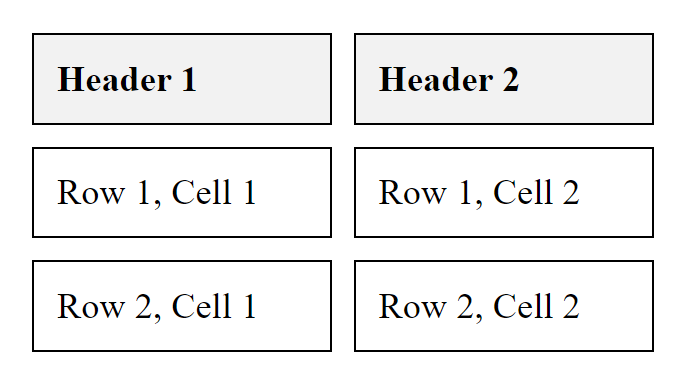
**In this example:**
- We set `border-collapse` to `separate` to separate the borders between cells, creating spacing between them.
- We use `border-spacing: 10px` to set the spacing between cells to 10 pixels.
- Both table headers (`th`) and table data cells (`td`) have a 1px solid black border and padding of 10px.
- The table headers have a background color to make them stand out.
These CSS properties help control the cell padding and spacing within the table, allowing you to adjust the visual appearance of the table cells and the space between them to your desired values.
**4. Background Colors (`background-color`):**
You can set background colors for the entire table or individual cells to distinguish different parts of the table.
To set background colors for individual table cells or the entire table in HTML, you can use the `background-color` property in CSS. Here’s an example of how to apply background colors to table cells and the table itself:
```xml
| Header 1 |
Header 2 |
| Row 1, Cell 1 |
Row 1, Cell 2 |
| Row 2, Cell 1 |
Row 2, Cell 2 |
Code language: HTML, XML (xml)
```
**Output : **
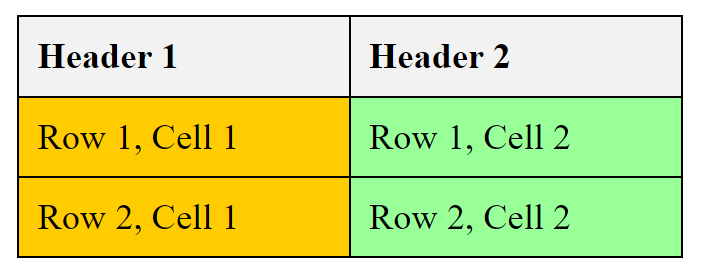
**In this example:**
- We set the background color for the entire table by adding the `.table-background` class to the `` element with `background-color: #66ccff;`.
- We apply different background colors to specific table cells using the `.cell1` and `.cell2` classes.
- Table headers (`th`) have a light gray background color (`#f2f2f2`), and table data cells (`td`) have either a yellow background color (`#ffcc00`) or a light green background color (`#99ff99`).
You can adjust the background colors and classes as needed to achieve the desired appearance for your table and its cells.
**5. Header Styling (`th` elements):**
To style header cells differently, you can target `th` elements with CSS to change their font weight, background color, or text color.
You can style table headers (`` elements) in HTML using CSS to make them stand out from the rest of the table. Here’s an example of how to style table headers:
```xml
| Header 1 |
Header 2 |
| Row 1, Cell 1 |
Row 1, Cell 2 |
| Row 2, Cell 1 |
Row 2, Cell 2 |
Code language: HTML, XML (xml)
```
**Output : **
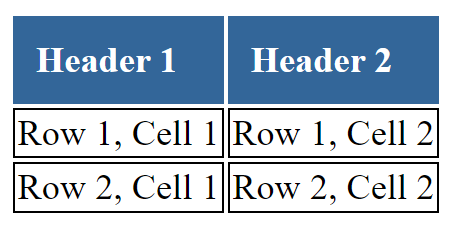
**In this example:**
- We target all ` | ` elements using the `th` selector in CSS.
- We set a background color for table headers using `background-color: #336699;`.
- The text color for headers is set to white with `color: #fff;`.
- Padding is added to headers for better readability using `padding: 10px;`.
- The text alignment for header text is set to the left using `text-align: left;`.
As a result, table headers will have a blue background color, white text, and left-aligned text content. You can customize these styles according to your design preferences.
**6. Alternating Row Colors (CSS Selectors):**
Using CSS selectors like `:nth-child` or `:nth-of-type`, you can apply alternating background colors to rows for better readability.
You can apply alternating row colors to an HTML table using CSS selectors to make the table more readable. Here’s an example of how to achieve this:
```xml
| Header 1 |
Header 2 |
| Row 1, Cell 1 |
Row 1, Cell 2 |
| Row 2, Cell 1 |
Row 2, Cell 2 |
| Row 3, Cell 1 |
Row 3, Cell 2 |
Code language: HTML, XML (xml)
```
**Output : **
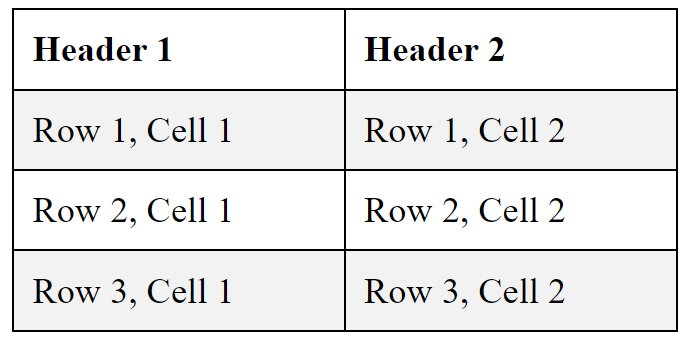
**In this example:**
- We set alternating row colors using the `tr:nth-child(even)` and `tr:nth-child(odd)` selectors.
- Even rows have a light gray background color (`#f2f2f2`), while odd rows have a white background color (`#ffffff`).
- The rest of the table styles, such as borders, padding, and text alignment, are retained for consistency.
This approach ensures that the rows in the table have alternating background colors, making it easier to read and distinguish between rows of data. You can customize the background colors and other styles to match your design preferences.
**7. Text Alignment (`text-align`):**
You can control the horizontal alignment of text within table cells, such as aligning content to the center or right.
To control text alignment within a table in HTML, you can use the `text-align` property in CSS. Here’s an example of how to align text within a table:
```xml
| Header 1 |
Header 2 |
| Row 1, Cell 1 |
Row 1, Cell 2 |
| Row 2, Cell 1 |
Row 2, Cell 2 |
Code language: HTML, XML (xml)
```
**Output : **
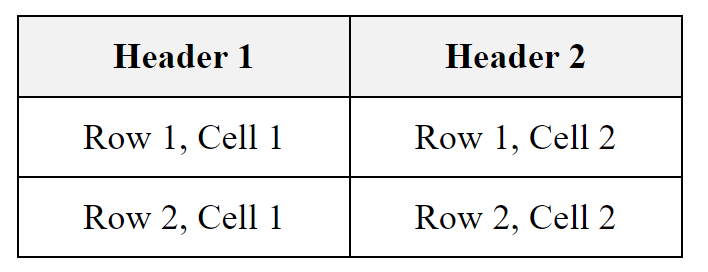
**In this example:**
- We use the `text-align: center;` property to center-align text within both table headers (`th`) and table data cells (`td`).
- The rest of the table styles, such as borders, padding, and background color for headers, are retained for consistency.
This results in text that is centered within the table cells. You can adjust the `text-align` property to `left`, `right`, or `justify` as needed to achieve the desired text alignment within your table.
**8. Hover Effects (`:hover` pseudo-class):**
To provide user feedback, you can add hover effects to table rows or cells using the `:hover` pseudo-class.
Certainly! You can create hover effects for table rows in HTML using the `:hover` pseudo-class in CSS. Here’s an example:
```xml
| Header 1 |
Header 2 |
| Row 1, Cell 1 |
Row 1, Cell 2 |
| Row 2, Cell 1 |
Row 2, Cell 2 |
Code language: HTML, XML (xml)
```
**Output : **
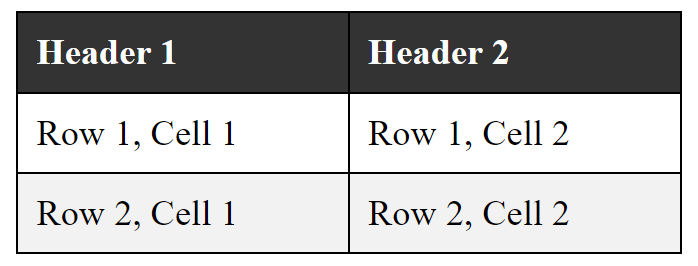
**In this example:**
- We use the `tr:hover` selector to target table rows when they are being hovered over.
- On hover, we change the background color of the row to `#f2f2f2` to create a highlighting effect.
- The rest of the table styles, such as borders, padding, and header styles, are maintained for consistency.
This creates a hover effect where the background color of a table row changes when the user hovers over it, making the table more interactive and visually appealing.
Styling tables with CSS is essential for creating visually appealing and user-friendly data presentations on websites. It allows you to tailor the appearance of tables to match the overall design and improve the readability of tabular data.
### Related posts:
[HTML – Tables](https://blog.khanwaseem.com/html-tables/)
[CSS – Border](https://blog.khanwaseem.com/css-border/)
[CSS – Padding](https://blog.khanwaseem.com/css-padding/)
[CSS – Pseudo Classes](https://blog.khanwaseem.com/css-pseudo-classes/)
Powered by [YARPP](https://yarpp.com).
|