---
title: "CSS Syntax"
url: https://khanwaseem.com/blog/course/css-syntax
author: "khan Waseem"
published: 2023-09-13
updated: 2023-09-13
topics: ["course", "CSS Tutorial"]
description: "Certainly! CSS syntax is the set of rules and conventions used to write styling instructions for web documents."
---

# CSS Syntax

Certainly! CSS syntax is the set of rules and conventions used to write styling instructions for web documents. It consists of selectors that target HTML elements and declarations that define how those elements should look. Here’s a breakdown of CSS syntax:

![](https://blogkhanwaseem.s3.amazonaws.com/uploads/2023/09/13101813/CSS-Syntax.webp)

- **Selectors:** Selectors are used to target HTML elements that you want to style. They can be based on element names (e.g., `p` for paragraphs), classes (e.g., `.my-class`), IDs (e.g., `#my-id`), or other attributes.

- **Properties:** Properties are the visual aspects you want to control, such as `color` for text color or `font-size` for text size.

- **Values:** Values are the settings you apply to properties. For example, `color: blue;` sets the text color to blue.

- **Declaration Block:** A declaration block consists of one or more declarations enclosed in curly braces `{ }`. For example:

```css
   selector {
     property1: value1;
     property2: value2;
   }Code language: CSS (css)
```

- **Declaration:** A declaration is a single styling instruction within a declaration block. It consists of a property and a value, separated by a colon and terminated with a semicolon. For example:

```css
   color: red;Code language: CSS (css)
```

- **Comments:** CSS allows you to add comments to your code to explain or annotate it. Comments are enclosed in `/* */`:

```css
   /* This is a CSS comment */Code language: CSS (css)
```

Here’s a simple example of CSS syntax in action:

```xml
<h1>Hello Coders!</h1>
<div class="my-class">
  <h2> This is Handing </h2>
</div>
<div id="my-id">
  <h3> This is Handing </h3>
</div>Code language: HTML, XML (xml)
```

```css
/* This is a comment */
h1 {
  color: blue;
  font-size: 24px;
}

.my-class {
  background-color: yellow;
}

#my-id {
  border: 1px solid black;
}Code language: CSS (css)
```

**Output : **

![](https://blogkhanwaseem.s3.amazonaws.com/uploads/2023/09/13104428/image-2.png)

In this example, we have CSS selectors (`h1`, `.my-class`, and `#my-id`) followed by declaration blocks containing properties and values. These CSS rules define how specific HTML elements should be styled when displayed in a web browser.

## Type of Selectors

Certainly! In CSS, type selectors are a fundamental part of styling web content. They are used to target and apply styles to specific HTML elements based on their type or tag name. Here are some common type selectors:

1. **Universal Selector (`*`):** The universal selector targets all HTML elements on a web page. It can be used to apply global styles or resets.

```xml
<!DOCTYPE html>
<html>
<head>
  <title>Universal Selector Example</title>
  <style>
    /* Universal Selector Example */
    * {
      margin: 0;
      padding: 0;
      color : green;
    }
  </style>
</head>
<body>
  <h1>This is a heading</h1>
  <p>This is a paragraph.</p>
  <ul>
    <li>Item 1</li>
    <li>Item 2</li>
  </ul>
</body>
</html>
Code language: HTML, XML (xml)
```

**Output : **
![](https://blogkhanwaseem.s3.amazonaws.com/uploads/2023/09/13110020/image-5.png)

**In this example:**

- `*****` is the universal selector, targeting all HTML elements on the web page.

- `**margin: 0;**` sets the margin of all elements to 0, effectively removing any default spacing around elements.

- `**padding: 0;**` sets the padding of all elements to 0, removing any default padding inside elements.

- `**color: green;**` sets the text color of all elements to green.

As a result, all elements on the web page, including headings, paragraphs, and list items, will have no margin or padding, creating a consistent starting point for styling.

The universal selector is a powerful tool for making global adjustments to the styling of elements across your website, and it’s commonly used in CSS resets and normalizations to ensure cross-browser consistency.

2. **Element Selector:** These selectors target specific HTML elements. For example:

`p` targets all `<p>` (paragraph) elements.

`h1` targets all `<h1>` (heading level 1) elements.

`a` targets all `<a>` (anchor) elements.

```xml
<!DOCTYPE html>
<html>
<head>
  <title>Element Selector Example</title>
  <style>
    /* Element Selector Example */
    p {
      color: blue;
      font-size: 16px;
    }
  </style>
</head>
<body>
  <p>This is a paragraph with blue text and a 16px font size.</p>
  <p>Another paragraph with the same styles.</p>
</body>
</html>Code language: HTML, XML (xml)
```

**Output : **
![](https://blogkhanwaseem.s3.amazonaws.com/uploads/2023/09/13121312/image-6.png)

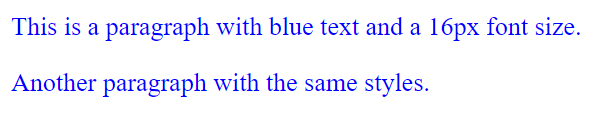
**In this example**:

 we have used the `p` element selector to target all `<p>` (paragraph) elements on the web page. Here’s how it works:

- `p` is the element selector, targeting all `<p>` elements.

- Inside the curly braces `{ }`, we define the styles we want to apply to those paragraphs.

- We have set the text color to blue (`color: blue;`) and the font size to 16 pixels (`font-size: 16px;`).

As a result, both paragraphs on the web page will have blue text and a font size of 16 pixels, thanks to the element selector targeting all `<p>` elements.

This is just a basic example, but element selectors are essential for styling HTML elements consistently and efficiently across your web pages.

3. **Grouping Selectors:** You can group multiple type selectors together to apply the same styles to different types of elements. For example:

`h1, h2, h3` targets all heading elements from level 1 to 3 and applies the same styles.

```xml
<!DOCTYPE html>
<html>
<head>
  <title>Grouping Selectors Example</title>
  <style>
    /* Grouping Selectors Example */
    h1, h2, h3 {
      font-family: Arial, sans-serif;
      font-weight: bold;
      color: red;
    }
  </style>
</head>
<body>
  <h1>This is a Level 1 Heading</h1>
  <h2>This is a Level 2 Heading</h2>
  <h3>This is a Level 3 Heading</h3>
  <p>This is a paragraph with different styles.</p>
</body>
</html>
Code language: HTML, XML (xml)
```

**Output : **
![](https://blogkhanwaseem.s3.amazonaws.com/uploads/2023/09/13121634/image-8.png)

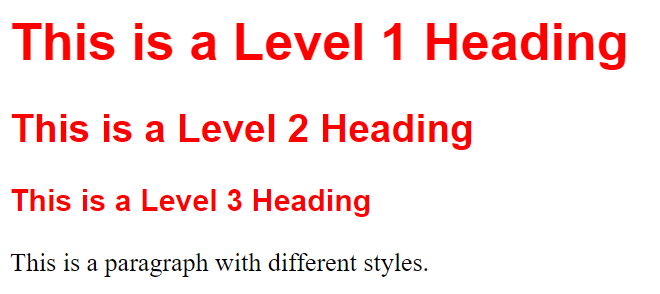
**In this example:**

- We have grouped the selectors `h1`, `h2`, and `h3` together using a comma `,` within a single rule block in the CSS.

- Inside the rule block, we have applied common styles to these heading elements. Specifically, we’ve set the `font-family` to Arial or a sans-serif font, made the text `font-weight` bold, and set the text color to a dark gray (`#333`).

As a result, all three levels of headings (`<h1>`, `<h2>`, and `<h3>`) will share the same font styles defined in the grouped selector, making it easier to maintain and update their styles collectively.

**4.Child Selectors** : Certainly! Child selectors in CSS are a powerful way to style elements that are direct children of another element, ignoring any nested elements. Let’s explore child selectors with a practical example:

**Purpose of Child Selectors:** Child selectors help you apply styles to elements that are immediate children of a parent element, without affecting their descendants or nested elements.

**Example of Child Selector:**

Imagine you have an HTML structure representing a navigation menu, and you want to style only the top-level menu items while leaving sub-menu items untouched. Here’s how you can do it:

```xml
<!DOCTYPE html>
<html>
<head>
    <title>ID Selector Example</title>
    <style>
        * {
            margin: 20px auto;
        }
/* Select immediate child <li> elements within the .menu */
        .menu>li {
            font-weight: bold;
            color: blue;
        }
    </style>
</head>
<body>
    <ul class="menu">
        <li>Home</li>
        <li>About</li>
        <li>Services
            <ul class="submenu">
                <li>Web Design</li>
                <li>SEO</li>
            </ul>
        </li>
        <li>Contact</li>
    </ul>
</body>
</html>Code language: HTML, XML (xml)
```

**Output : **

![](https://blogkhanwaseem.s3.amazonaws.com/uploads/2023/09/13143341/image-11.png)

**In this example:**

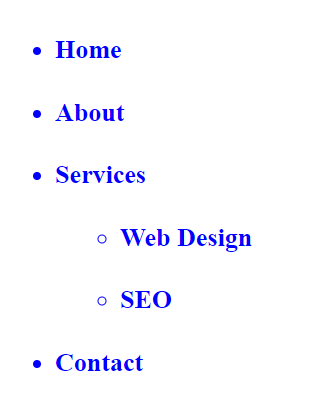
- We’ve created a CSS rule using the child selector `>` to target immediate child `<li>` elements within the `.menu`.

- We’ve applied styles such as `font-weight: bold;` and `color: blue;` to these top-level menu items.

As a result, only the top-level menu items (“Home,” “About,” “Services,” “Contact”) are styled in bold with a blue color. The sub-menu items (“Web Design” and “SEO”) remain unaffected because they are not direct children of the `.menu` element.

Child selectors are invaluable for precisely targeting elements within complex HTML structures, allowing you to maintain control over your page’s styling without affecting nested elements.

**5. Attribute Selectors:** Certainly! Attribute selectors in CSS are a versatile way to style elements based on their attributes or attribute values. Here’s a human-friendly explanation with an example:

**Purpose of Attribute Selectors:**
Attribute selectors enable you to style elements based on the presence or specific values of their attributes. They are particularly useful for customizing the appearance of elements with particular attributes.

**Example of Attribute Selector:**

Suppose you have a webpage with links (`<a>` elements), and you want to style links that open in a new tab or window differently from regular links. You can achieve this using attribute selectors:

```xml
<!DOCTYPE html>
<html>
<head>
    <title>ID Selector Example</title>
    <style>
        /* Select <a> elements with target="_blank" and change their color */
        a[target="_blank"] {
            color: blue;
            font-weight: bold;
            text-decoration: none;
            /* Remove underline */
        }
    </style>
</head>
<body>
    <a href="https://example.com" target="_blank">New Tab Link</a>
    <a href="https://example2.com">Regular Link</a>
</body>
</html>Code language: HTML, XML (xml)
```

**Output : **

![](https://blogkhanwaseem.s3.amazonaws.com/uploads/2023/09/13143818/image-12.png)

**In this example:**

- We’ve created a CSS rule using an attribute selector `[target="_blank"]` to select `<a>` elements with the `target` attribute set to “_blank.”

- We’ve applied styles like `color: blue;` to change the text color, `font-weight: bold;` to make the text bold, and `text-decoration: none;` to remove the underline for these links.

As a result, only the link with `target="_blank"` will be styled differently with a blue color, bold text, and no underline, while the regular link remains unaffected.

Attribute selectors are valuable for customizing the appearance of elements based on their attributes, allowing you to create unique styles for specific scenarios on your webpage.

Type selectors are the foundation of CSS styling, allowing you to control the appearance of HTML elements throughout your web pages. They are versatile and essential for creating visually appealing and consistent designs.

### Related posts:

[CSS – Pseudo Classes](https://blog.khanwaseem.com/css-pseudo-classes/)
[CSS – @ Rules](https://blog.khanwaseem.com/css-rules/)
[Class and ID Selector](https://blog.khanwaseem.com/class-and-id-selector/)
[CSS – Text](https://blog.khanwaseem.com/css-text/)

Powered by [YARPP](https://yarpp.com).
