---
title: "CSS – Lists"
url: https://khanwaseem.com/blog/course/css-lists
author: "khan Waseem"
published: 2023-09-15
updated: 2023-09-15
topics: ["course", "CSS Tutorial"]
description: "Discover expert insights on web design, coding, and digital trends. Stay up-to-date with the latest tips and tutorials for a successful online presence."
---

# CSS – Lists

In CSS (Cascading Style Sheets), you have several properties at your disposal to style lists, which are a fundamental part of web design. Lists can be categorized into ordered lists (ol) and unordered lists (ul), and you can use CSS to customize their appearance to match your website’s design. Here are some essential CSS properties for styling lists:

**1.list-style-type**: This property enables you to change the type of marker used for list items. For unordered lists, you can choose from options like disc, square, or circle. For ordered lists, you can specify different numbering styles, such as decimal, Roman numerals, or letters.

**Example :**

The `list-style-type` property in CSS is used to define the appearance of the list item markers (bullets or numbers) for ordered and unordered lists. Here’s an example of how to use `list-style-type` in HTML:

```xml
<!DOCTYPE html>
<html>
<head>
    <style>
        /* CSS styles for unordered list */
        ul {
            list-style-type: disc; /* Use filled circles as list item markers */
        }

        /* CSS styles for ordered list */
        ol {
            list-style-type: decimal; /* Use decimal numbers as list item markers */
        }
    </style>
</head>
<body>
    <h2>Unordered List</h2>
    <ul>
        <li>Item 1</li>
        <li>Item 2</li>
        <li>Item 3</li>
    </ul>

    <h2>Ordered List</h2>
    <ol>
        <li>First Item</li>
        <li>Second Item</li>
        <li>Third Item</li>
    </ol>
</body>
</html>Code language: HTML, XML (xml)
```

**Output : **
![](https://blogkhanwaseem.s3.amazonaws.com/uploads/2023/09/15114941/image-93.png)

**In this example:**

- We have an unordered list (`<ul>`) and an ordered list (`<ol>`).

- For the unordered list, we use the `list-style-type: disc;` property to set the list item markers as filled circles (default for unordered lists).

- For the ordered list, we use the `list-style-type: decimal;` property to set the list item markers as decimal numbers (default for ordered lists).

You can customize the appearance of list item markers by changing the value of `list-style-type` to other predefined values like `square`, `circle`, `lower-roman`, `upper-alpha`, or use custom marker images using `url('image-url')`.

**2.list-style-image**: You can use this property to set a custom image as the marker for list items. This allows for more creative and unique list styling.

**Example : **

The `list-style-image` property in CSS allows you to use custom images as list item markers for ordered and unordered lists. Here’s an example of how to use `list-style-image` in HTML:

```xml
<!DOCTYPE html>
<html>
<head>
    <style>
        /* CSS styles for unordered list with custom marker image */
        ul.custom-marker {
            list-style-image: url('custom-bullet.png'); /* Use a custom image as the list item marker */
        }

        /* CSS styles for ordered list with custom marker image */
        ol.custom-marker {
            list-style-image: url('custom-number.png'); /* Use a custom image as the list item marker */
        }
    </style>
</head>
<body>
    <h2>Unordered List with Custom Marker Image</h2>
    <ul class="custom-marker">
        <li>Item 1</li>
        <li>Item 2</li>
        <li>Item 3</li>
    </ul>

    <h2>Ordered List with Custom Marker Image</h2>
    <ol class="custom-marker">
        <li>First Item</li>
        <li>Second Item</li>
        <li>Third Item</li>
    </ol>
</body>
</html>Code language: HTML, XML (xml)
```

**Output : **
![](https://blogkhanwaseem.s3.amazonaws.com/uploads/2023/09/15115746/image-94.png)

In this example:

- We have an unordered list (`<ul>`) and an ordered list (`<ol>`).

- For both lists, we use the `list-style-image` property to set a custom image as the list item marker. In this case, we use `url('custom-bullet.png')` for the unordered list and `url('custom-number.png')` for the ordered list.

- The custom images, ‘custom-bullet.png’ and ‘custom-number.png’, should be located in the same directory as your HTML file or should have the correct path to their location.

This results in using custom images as list item markers instead of the default bullets or numbers. You can replace the image URLs with your own custom marker images as needed.

**3.list-style-position**: This property controls the positioning of the list marker (bullet or number) relative to the content. You can set it to “inside” (marker inside the content box) or “outside” (marker outside the content box).

**Example : **

The `list-style-position` property in CSS is used to control the position of the list item markers (bullets or numbers) in ordered and unordered lists. You can set it to `inside` or `outside`. Here’s an example of how to use `list-style-position` in HTML:

```xml
<!DOCTYPE html>
<html>
<head>
    <style>
        /* CSS styles for unordered list */
        ul.inside-list {
            list-style-position: inside; /* Place the list item markers inside the list items */
        }

        ul.outside-list {
            list-style-position: outside; /* Place the list item markers outside the list items (default) */
        }

        /* CSS styles for ordered list */
        ol.inside-list {
            list-style-position: inside; /* Place the list item markers inside the list items */
        }

        ol.outside-list {
            list-style-position: outside; /* Place the list item markers outside the list items (default) */
        }
    </style>
</head>
<body>
    <h2>Unordered List</h2>
    <p>Inside List (list-style-position: inside):</p>
    <ul class="inside-list">
        <li>Item 1</li>
        <li>Item 2</li>
        <li>Item 3</li>
    </ul>

    <p>Outside List (default):</p>
    <ul class="outside-list">
        <li>Item 1</li>
        <li>Item 2</li>
        <li>Item 3</li>
    </ul>

    <h2>Ordered List</h2>
    <p>Inside List (list-style-position: inside):</p>
    <ol class="inside-list">
        <li>First Item</li>
        <li>Second Item</li>
        <li>Third Item</li>
    </ol>

    <p>Outside List (default):</p>
    <ol class="outside-list">
        <li>First Item</li>
        <li>Second Item</li>
        <li>Third Item</li>
    </ol>
</body>
</html>Code language: HTML, XML (xml)
```

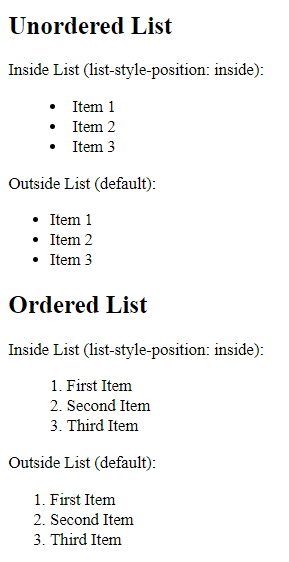
**Output : **

![](https://blogkhanwaseem.s3.amazonaws.com/uploads/2023/09/15121114/image-95.png)

**In this example:**

- We have two unordered lists (`<ul>`) and two ordered lists (`<ol>`).

- For each type of list, we create two sets: one with the `list-style-position` set to `inside` and the other using the default value, which is `outside`.

The `list-style-position: inside;` style places the list item markers (bullets or numbers) inside the list items, while the default `list-style-position: outside;` places them outside the list items.

You can observe the visual difference in the positioning of the list item markers between the “Inside List” and “Outside List” examples for both unordered and ordered lists.

**4.list-style**: If you want to apply multiple list-related properties in a single declaration, you can use the shorthand property `list-style`. It combines `list-style-type`, `list-style-image`, and `list-style-position` into one declaration.

**Example : **

The `list-style` property in CSS is a shorthand property used to set the style, image, and position of the list item markers (bullets or numbers) in ordered and unordered lists. Here’s an example of how to use the `list-style` property in HTML:

```xml
<!DOCTYPE html>
<html>
<head>
    <style>
        /* CSS styles for unordered list */
        ul {
            list-style: square inside url('custom-bullet.png'); /* Set list item marker style, position, and custom image */
        }

        /* CSS styles for ordered list */
        ol {
            list-style: upper-roman outside; /* Set list item marker style and position (default marker type) */
        }
    </style>
</head>
<body>
    <h2>Unordered List</h2>
    <ul>
        <li>Item 1</li>
        <li>Item 2</li>
        <li>Item 3</li>
    </ul>

    <h2>Ordered List</h2>
    <ol>
        <li>First Item</li>
        <li>Second Item</li>
        <li>Third Item</li>
    </ol>
</body>
</html>Code language: HTML, XML (xml)
```

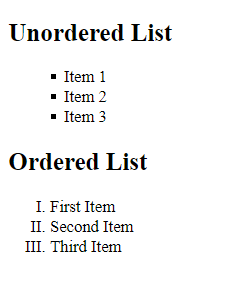
**Output : **

![](https://blogkhanwaseem.s3.amazonaws.com/uploads/2023/09/15121308/image-96.png)

**In this example:**

- We have an unordered list (`<ul>`) and an ordered list (`<ol>`).

- For the unordered list, we use the `list-style` property to set the list item marker style to `square`, position to `inside`, and a custom image as the marker using `url('custom-bullet.png')`.

- For the ordered list, we use the `list-style` property to set the list item marker style to `upper-roman` (default marker type) and the position to `outside`.

You can customize the appearance of list item markers by using the `list-style` shorthand property to set various properties like style, position, and image.

These CSS properties allow you to customize the appearance of lists on your website, making them visually appealing and consistent with your overall design.

### Related posts:

[CSS – Position](https://blog.khanwaseem.com/css-position/)
[HTML – Lists](https://blog.khanwaseem.com/html-lists/)
[CSS – @ Rules](https://blog.khanwaseem.com/css-rules/)
[CSS – Pseudo Classes](https://blog.khanwaseem.com/css-pseudo-classes/)

Powered by [YARPP](https://yarpp.com).
